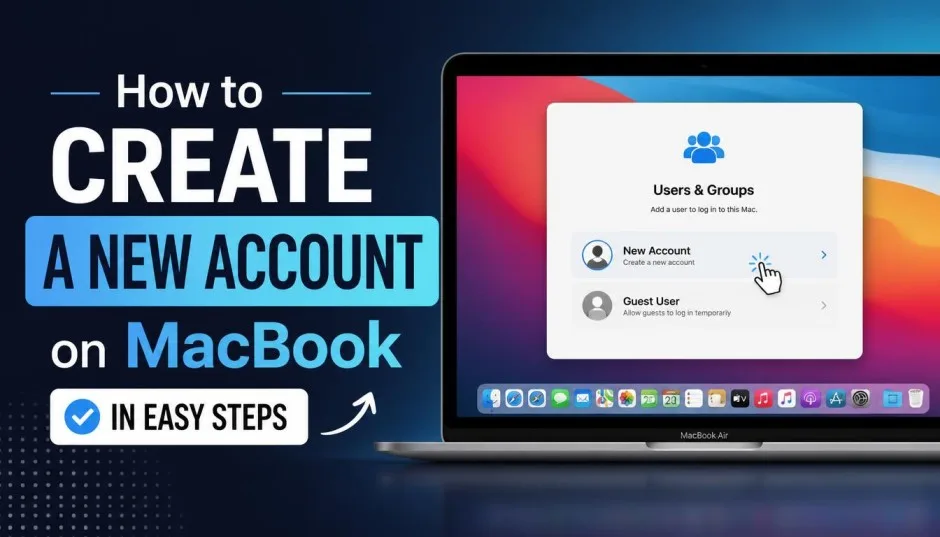
I set up my first MacBook account back in 2012. It took me four tries to get it right. The screen name, the Apple Account, the password sync. None of it clicked until I understood one thing. A Mac user account and an Apple Account are two different things.
The how to create a new account on MacBook process breaks into two parts. First, you create a macOS user account on the machine itself. Second, you link it to an Apple Account. That second step is optional. You can use a Mac without an Apple Account. You just cannot use iCloud, the App Store, or iMessage.
This guide walks through both parts. I also cover how to create a new Apple Account online and on Android. Those options matter if you cannot create one directly on the Mac.
The Two Types of Accounts You Need to Understand
A macOS user account is local to your Mac. It stores your files, preferences, and login password. It does not require an internet connection. You can create one in under a minute.
Read Also: Is Apple Skipping the M4 Pro for a Binned M5 Chip?
An Apple Account is the opposite. It is tied to Apple’s servers. It gives you access to the App Store, iCloud, Find My, and more. Apple renamed Apple ID to Apple Account in recent years. The login credentials stay the same.
You can have a Mac user account without an Apple Account. You cannot have an Apple Account without some email address. That address does not have to be an Apple one. Any email works.
How to Create a New Account on MacBook?
Here is the process for adding a fresh user account to your Mac. This works on macOS Ventura 13 or later. The steps are nearly identical on older versions.
Step 1: Open System Settings from the Apple menu. On older Macs, this is called System Preferences.
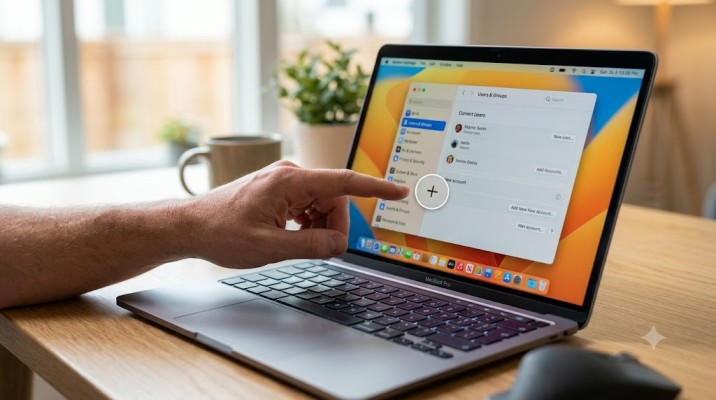
Step 2: Click Users & Groups in the sidebar. You may need to scroll down.
Step 3: Click Add User. The button might say Add Account. Enter your administrator password when the prompt appears.
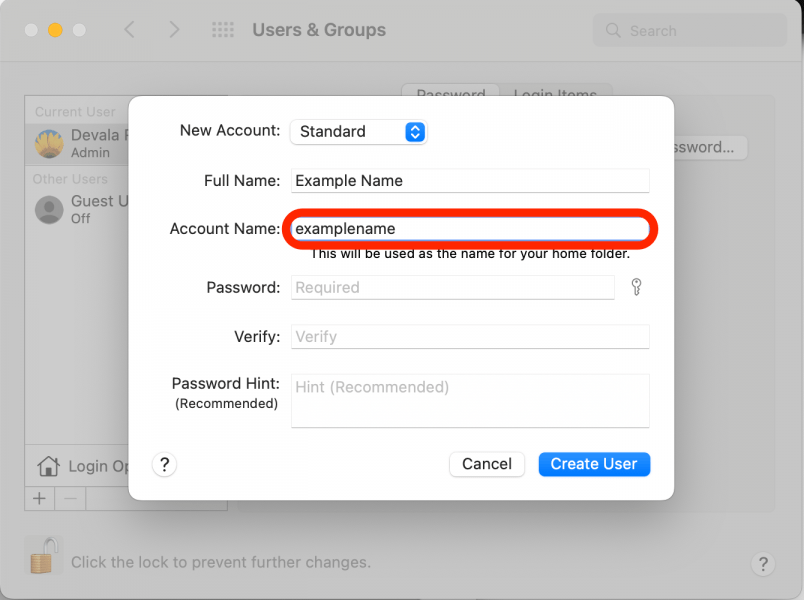
Step 4: Choose the account type from the New User pop-up menu. Standard is the safe choice for family members or shared computers. Administrator gives full control. Do not hand out administrator access unless you trust the person completely.
Step 5: Fill in the Full Name, Account Name, and Password. The Full Name appears on the login screen. The Account Name becomes the home folder name. Avoid spaces. Stick to lowercase letters and numbers.
Step 6: Click Create User. Your Mac adds the account instantly.
After creation, you can log into the new account. A setup assistant walks you through the first login. It asks if you want to sign in with an Apple Account. You can skip that step. You can also use a different Apple Account for each Mac user.
What Apple Account Sign-In Means for the New User?
The setup assistant will ask for an Apple Account. This is where people get confused. If you created a standard account for your child, use the child’s Apple Account. Not yours. Apple’s support documents stress this point.
You Must Also Like: Switching from Windows to M5 MacBook Air: The Ultimate 2026 Transition Guide
If the new user does not have an Apple Account, they can create one during setup. The Mac will offer a “Create Free Apple Account” option. That option appears on the sign-in screen.
If you skip the Apple Account entirely, the Mac still works. You just lose iCloud sync, App Store access, and Find My. For a guest or temporary account, that is fine.
How to Create a New Apple Account Online?
Sometimes the Mac will not let you create an Apple Account directly. You might see an error about too many accounts on the device. Apple limits how many accounts can be created from a single machine.
The fix is simple. Create the Apple Account on the web instead. Then sign into it on the Mac.
Go to account.apple.com in any browser. Click “Create Your Apple Account”. Enter your birthday, email address, and a strong password. Choose your country or region.
Apple sends a verification email. Click the link inside it. Add a phone number for two-factor authentication. That phone number helps recover the account if you forget the password.
You can also create the account through the App Store on an iPhone or iPad. Open the App Store. Tap your profile icon. Choose “Create New Apple Account.” The email you enter becomes your login address.
How to Create an Apple Account on Android?
You do not need an Apple device to make an Apple Account. This surprises people. Apple TV, Apple Music, and some other services run on Android. You need an Apple Account to sign in.
Open a browser on your Android phone. Go to account.apple.com. The process is identical to the web method above. Enter your details. Verify your email and phone. You now have an Apple Account that works on any device.
You can also create the account inside the Apple TV app on Android. The app will redirect you to Apple’s account creation page. Same steps apply.
Mistakes I Made So You Do Not Have To
Mistake 1: Using the same Apple Account for everyone. Each person needs their own. Sharing an Apple Account means sharing iCloud storage, Find My location, and purchase history. It gets messy fast.
Mistake 2: Skipping the phone number. Apple uses the phone number for account recovery. If you skip it, losing your password becomes a nightmare. You may lose access to your purchases permanently.
Mistake 3: Forgetting the administrator password. The Mac will not let you add users without it. If you do not know it, you need to reset the Mac’s password first. That is a longer process.
Mistake 4: Choosing Administrator for a child. Apple’s own guidance says children should have Standard accounts. Administrator access lets them change system settings that affect everyone.
Quick Reference: The Steps at a Glance
Create a Mac user account: System Settings > Users & Groups > Add User > choose Standard or Administrator > fill in name and password > Create User.
Create an Apple Account on the Mac: System Settings > Sign In > “Don’t have an account?” > follow prompts.
Create an Apple Account on the web: account.apple.com > Create Your Apple Account > enter details > verify email and phone.
Create an Apple Account on Android: account.apple.com in any browser. Same process as the web method.
The Final Thoughts
The how to create a new account on MacBook process is not hard once you separate the two account types. The Mac user account is local and fast. The Apple Account is online and optional.
Create the user account first. Test that it logs in. Then link an Apple Account if the person needs iCloud or the App Store. If the Mac blocks you, go to account.apple.com and do it from there.
That order saves headaches. I learned it the hard way. You do not have to.