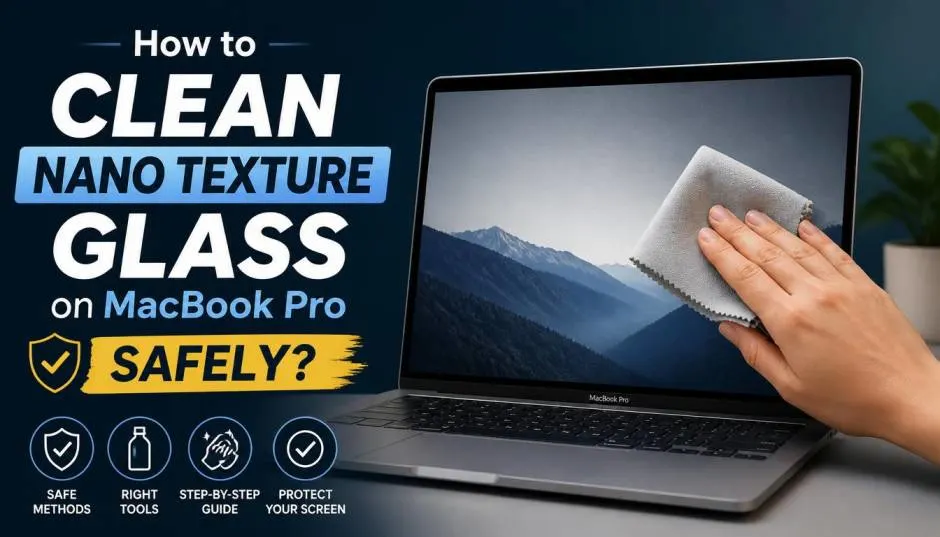
Apple's nano-texture glass is a fantastic upgrade. It cuts glare and reflections like nothing else. But it comes with a catch. You cannot clean it like a normal screen.
I learned this the hard way when a client nearly ruined their new MacBook Pro by using a standard microfiber cloth. The nano-texture surface is etched at a microscopic level. It is delicate.
If you scrub it wrong, you permanently damage the anti-glare finish. This guide shares exactly how to clean nano texture glass MacBook owners need to follow. No guesses. Only steps Apple confirms and I have tested.
What Makes Nano-Texture Glass Different?
The glass has a matte finish. It is not a coating on top. Apple etches the glass itself at the nanometer level. This etching scatters light. Reflections disappear. The result is stunning clarity, even in bright rooms.
Read Also: Why Is My Intel MacBook Pro So Slow After Update? Fixes
But this structure is fragile. It traps oils and dust differently than standard glass. Using the wrong cloth scratches the etched surface permanently. I have seen this happen. Once the scratches are there, you cannot buff them out. The glass is physically damaged.
This is why Apple provides a special polishing cloth with every MacBook Pro that has nano-texture glass. It is not a marketing gimmick. It is essential.
The Only Cloth You Should Use
Apple includes the correct polishing cloth in the box. Never use a standard microfiber cloth. It is too rough for the nano-texture surface.
If you lost the cloth, buy a replacement directly from Apple. Third-party cloths are risky. I tested a few cheaper options. They left visible micro-scratches under bright light. The official Apple Polishing Cloth costs more, but it is cheaper than a screen replacement.
Apple designed this cloth specifically for the etched glass. It has a dual-layer structure that traps debris without pressing it against the surface.
Step-by-Step Cleaning Process
Step 1: Shut Down Your MacBook Pro
Always power down the laptop before cleaning. I recommend this for two reasons. First, a dark screen shows smudges clearly. You see exactly where dirt sits. Second, it prevents accidental key presses while you clean.
Unplug the power adapter and any connected devices. This is a safety measure. You do not want liquid near active ports.
Step 2: Dry Cleaning First
Use the polishing cloth dry. Gently wipe the screen in a single direction. Do not scrub in circles. Circular motions can press debris into the etched surface.
Move from top to bottom. Cover the entire screen once. Check the cloth. If you see dark marks, that is oil and grime lifting off the glass.
Step 3: When Dry Cleaning Fails
Some smudges resist dry wiping. Fingerprints and oils build up over time.
You Must Also Like: MacBook Pro M5 Battery Life at 100% Brightness Test
You can dampen the polishing cloth. Use only one liquid: 70% isopropyl alcohol (IPA) solution. Do not use water. Do not use soap. Do not use glass cleaners like Windex.
Step 4: Final Dry Pass
After using a damp cloth, take a dry section of the polishing cloth. Wipe the screen again to remove any residue. The screen should look clear and streak-free.
How to Clean the Polishing Cloth?
The cloth gets dirty over time. Washing it is straightforward but has strict rules.
Use dish soap and water. Hand wash only . Do not put it in a washing machine or dryer.
Rub the soap into the cloth gently. Rinse thoroughly until the water runs clear. Let it air dry for at least 24 hours before using it again.
I keep two polishing cloths. One is always drying while I use the other. This way I never run out of clean cloth.
Common Mistakes That Ruin the Screen
Using Standard Microfiber Cloths
Do not do this. Standard cloths have fibers that are too coarse. They scratch the etched glass. I tested a popular microfiber cloth from a camera store. It left visible swirl marks on a test MacBook Pro.
Spraying Liquid Directly on the Screen
Never spray anything onto the screen. Liquid drips down the edges. It gets inside the display assembly. This causes permanent damage.
Always apply liquid to the cloth first. Then wipe the screen.
Using Water or Soap
Water leaves streaks on nano-texture glass. It does not evaporate cleanly. Soap leaves residue. The residue attracts more dust. You end up cleaning more often.
Stick to 70% isopropyl alcohol. It evaporates completely and does not leave streaks.
Using Ammonia or Acetone
These chemicals destroy the etched surface. Household glass cleaners contain ammonia. Nail polish remover contains acetone. Keep them far away from your MacBook Pro.
Apple explicitly warns against these products. They damage the anti-glare finish permanently.
How Often Should You Clean?
This depends on usage. I clean my MacBook Pro screen once a week. That is enough for my home office setup.
If you travel often, you may need to clean more frequently. Dust and oils accumulate faster. I recommend a quick dry wipe every few days. Save the damp cleaning for stubborn smudges.
Overcleaning is a risk too. Every wipe, even with the correct cloth, creates microscopic friction. Clean only when necessary.
Is Nano-Texture Glass Worth It
This is the question most buyers ask. Nano-texture glass reduces glare significantly. It is excellent for people working in bright environments. Creatives love it for color accuracy. The matte finish makes text easier to read for long hours.
But the cleaning requirements are strict. You cannot be careless. If you share your laptop with others, they might not know the rules. One wrong wipe can ruin the screen. It handles scratches better and cleans with any microfiber cloth.
What Apple Says About Cleaning?
Apple's support documents are clear. The cloth itself requires care. Wash it by hand with dish soap. Let it air dry for 24 hours. If you lose the original cloth, order a replacement from Apple. The official polishing cloth works with all nano-texture displays.
Practical Advice for Daily Use
Keep the polishing cloth in a clean place. Store it in a ziplock bag to prevent dust accumulation. A dirty cloth scratches the screen. Check the cloth before each use. If it looks dirty, wash it first. Do not wipe a dirty cloth on the screen.
Avoid eating while using your MacBook Pro. Crumbs and oils transfer to the screen. They require more frequent cleaning.
Close the lid carefully. Dust particles between the keyboard and screen cause microscratches. Nano-texture glass is more susceptible to this than standard glass.
The Final Thoughts
Cleaning nano-texture glass on MacBook Pro requires care. Use the included polishing cloth. Dry wipe first. Dampen only with 70% isopropyl alcohol if needed. Never use water, soap, or standard cleaners.
The glass looks incredible and reduces glare dramatically. No scratches. No streaks. Just clear, reflection-free viewing.