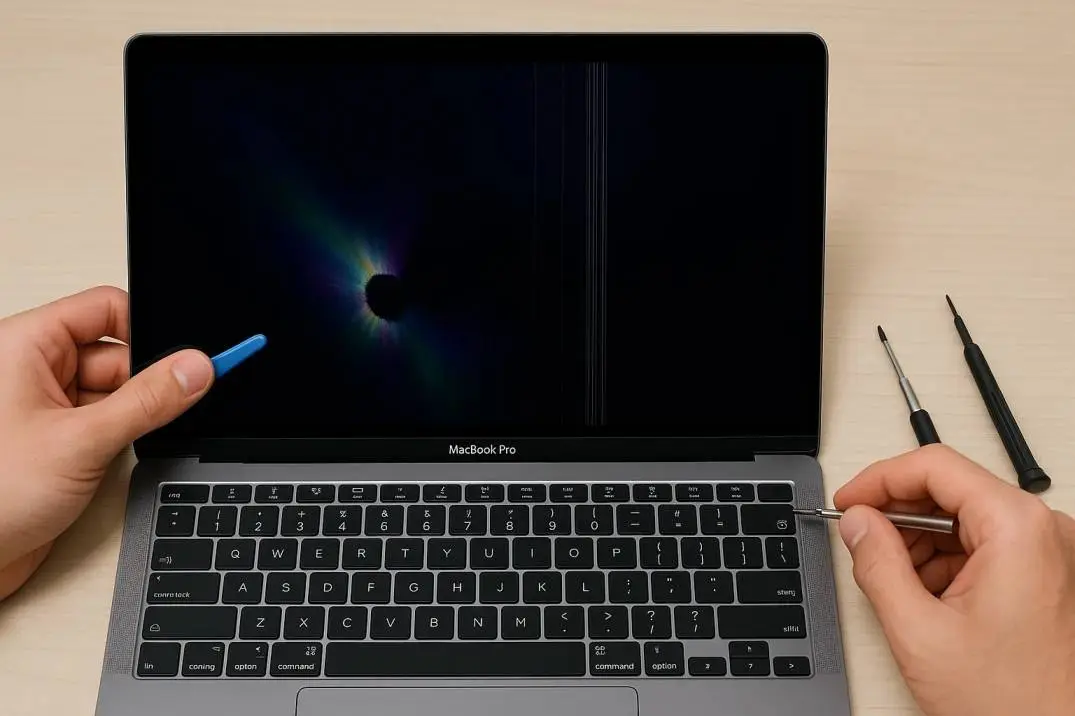
I woke up last month to a thin black line at the bottom of my MacBook Pro screen. Right at the dock. Just sitting there. Mocking me. My first thought? "This is going to cost me a thousand dollars."
I was almost right.
The black lines at bottom of MacBook Pro screen problem is everywhere. Search any Apple forum. You will see hundreds of posts. Mostly from 2016 to 2020 models. But newer ones too.
I fixed mine. Cost me 0.Butitcouldhavecostme0.Butitcouldhavecostme700 if I did one thing wrong.
Here is exactly what those lines mean. How to fix them for free. And when to stop trying and just pay for repair.
How to Fix Black Lines at Bottom of MacBook Pro Screen?
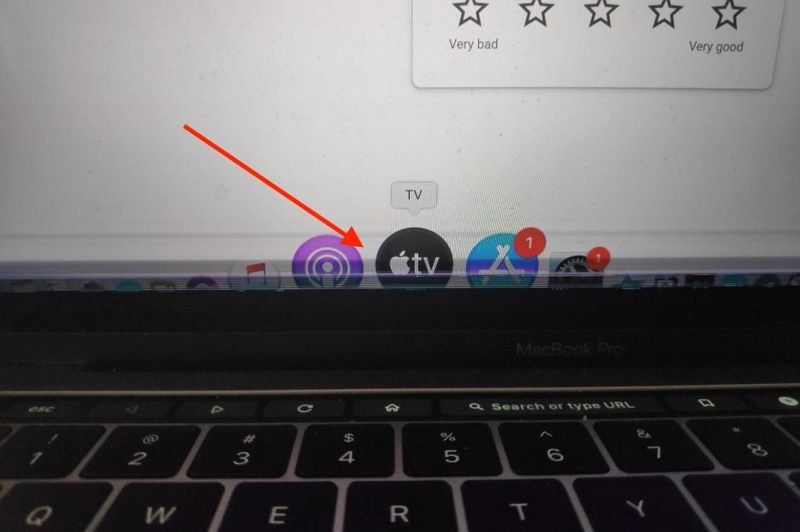
In this paragraph, I will guide on how to fix black lines at bottom of MacBook pro screen? Take a screenshot.
Related Article: How to Fix Heat Damage MacBook Pro Screen?
Press Shift + Command + 4. Capture the area with the lines.
Now open that screenshot on your phone or another computer.
Do the lines appear in the screenshot?
-
Yes. The problem is software or your graphics card. Good news. Probably free to fix.
-
No. The screenshot looks clean. That means the black lines at bottom of MacBook Pro screen are hardware. Your physical screen is damaged. Or the cable inside is broken.
This one test saves you hours of guessing.
I did this test. My screenshot was clean. That meant hardware. I was not happy.
The Screenshot Is Clean? Here Is Your Problem
If the lines only appear on your actual screen but not in screenshots, you have one of three problems .
1. The Flex Cable (Most Common)
Apple designed a ribbon cable inside the hinge that is too short . Every time you open and close the laptop, that cable bends. After a few thousand bends? It cracks. This is called "Flexgate."
The 2016, 2017, and 2018 MacBook Pros are famous for this. But I have seen it on 2021 models too.
How to check: Move your screen slowly back and forth. Do the lines change? Do they get worse at certain angles? That is the cable.
2. Overheating Damage
Intel MacBook Pros run hot. Really hot. The T-Con board (controls the display) sits near the heat pipes . After years of heat? It fails. Horizontal black lines at the bottom of the screen are the first sign.
3. Physical Pressure
Did you close the lid on a charging cable? A grain of sand? A webcam cover? The gap between the keyboard and screen is tiny. Even a small object cracks the LCD from the inside. You might not see a crack on the glass. But the liquid crystal layer underneath is broken.
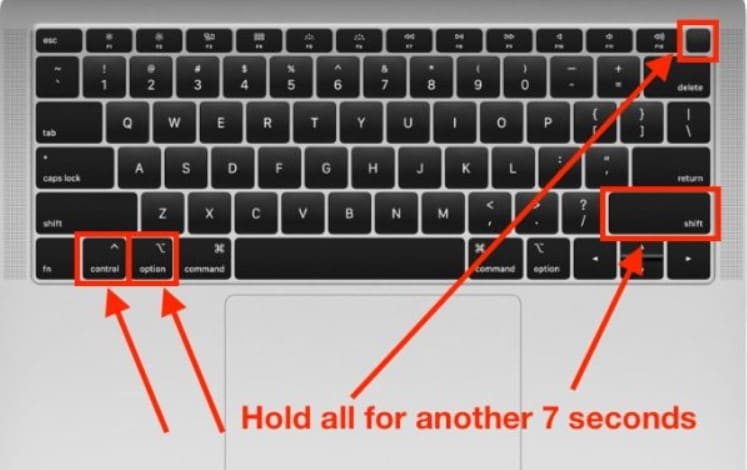
Software Fixes (Try These First. Free.)
Do not rush to the Apple Store. Try these three things first. They cost nothing but 10 minutes.
Restart Your Mac Properly
Not just click restart. Shut down completely. Wait 30 seconds. Turn it back on.
I know. It sounds stupid. But a clean restart resets the display drivers. Fixed my friend's flickering lines last week.
Run Apple Diagnostics
This tool checks for hardware problems for free.
-
Apple Silicon (M1, M2, M3, M4): Shut down. Press and hold the power button until you see "Loading startup options." Then press Command + D.
-
Intel: Shut down. Press the power button and immediately hold D.
Write down any reference codes you see. If you see codes starting with VFD, that is a display issue.
Reset NVRAM (Intel Macs Only)
This clears display settings that might be corrupted.
You Must Also Like: MacBook Pro Orange Screen: Solutions You Need to Know
Shut down. Turn on and immediately hold Option + Command + P + R for about 20 seconds. Release when you hear the startup chime a second time.
On Apple Silicon Macs? You do not have this. Just restart normally.
Still There? Try the External Monitor Test
Plug your MacBook into an external monitor or TV.
Now look at the external screen.
-
Lines appear on the external screen too? Your graphics card or logic board is failing. This is expensive. 500to500to800 range.
-
External screen looks perfect? Your built-in display hardware is broken. The LCD panel or the flex cable.
This test tells you exactly where the problem lives. No guessing.
When It Is Flexgate (The 45-Degree Test)
Open your MacBook to a 45-degree angle.
Do the lines disappear? Or do they get worse?
If tilting the screen changes the lines, your flex cable is damaged. This is the most common cause of black vertical line on MacBook Pro screen issues.
Apple had a repair program for this. For 13-inch MacBook Pros from 2016. That program ended.
Your options:
-
Third-party repair shop: 150to150to250 for just the cable
-
Apple: They replace the whole display assembly. Not just the cable. 500to500to700
I went with a third-party shop. Paid 180.Fixedintwohours.Applewanted180.Fixedintwohours.Applewanted650.
The Overheating Fix (Temporary but Works)
If your lines appear after the laptop has been on for a few hours, heat is the problem.
Shut down the laptop. Let it cool for 30 minutes. Turn it back on.
Do the lines look better? They might disappear completely for a few days. Then come back.
This is temporary. The damage is already done to the T-Con board. You will need a repair eventually. But cooling it down buys you time to back up your files.
Repair Costs (Real Numbers. Not Guesses.)
I called three repair shops and checked Apple's website. Here are real prices from 2026.
| Model | Apple Store | Independent Shop |
|---|---|---|
| 13-inch Pro (2016-2020) | 500−500−600 | 250−250−400 |
| 14-inch Pro (M1/M2/M3) | 700−700−900 | 450−450−650 |
| 16-inch Pro | 800−800−1,000+ | 550−550−800 |
With AppleCare+? You pay $99 for a screen repair. That is it. If you have AppleCare+, go to Apple. Do not go to a third party.
Without AppleCare+? Find a reputable independent shop. Read Google reviews. Ask if they use OEM or equivalent parts. I saved $470 by not going to Apple.
What Not to Do (I Made These Mistakes)?
Do not put tape on the lines. I saw a YouTube video. Some guy put black tape over the lines. That is stupid. You cannot see error messages behind the tape. Just fix the screen.
Do not push on the lines. Pressing the bottom of the screen might make the lines disappear for a second. But you are crushing more pixels. It will spread.
Do not ignore it. The lines will get worse. What starts as one thin line becomes five lines. Then half the screen. Then nothing. I waited two weeks. It doubled. Do not be me.
When to Just Buy a New MacBook?
Here is the honest truth no repair shop will tell you.
If your MacBook is from 2016, 2017, or 2018, and the repair quote is over $500? Do not fix it. Those models have other problems. Keyboard issues. Battery swelling. Flexgate.
A 2017 MacBook Pro is worth maybe 400working.Paying400working.Paying600 to fix the screen is bad math.
Sell it for parts on eBay. Someone will buy it for 150to150to200. Put that money toward a new MacBook Air with an M chip.
If your MacBook is 2021 or newer? Fix it. The laptop is worth 1,000+.Spending1,000+.Spending500 to fix a $1,500 laptop makes sense.
Quick Summary (What to Do Right Now)
-
Take a screenshot. Open it on another device.
-
If lines are in the screenshot? Run software fixes (restart, diagnostics, NVRAM reset).
-
If lines are NOT in the screenshot? You have hardware damage.
-
Do the tilt test. Move the screen slowly. Lines changing = flex cable.
-
Check your AppleCare+ status. If you have it, pay $99 at Apple.
-
If no AppleCare+, get quotes from two independent shops.
-
If laptop is older than 2019 and quote is over $500? Buy a new one.
The black lines at bottom of MacBook Pro screen scared me when I first saw them. Now I know they are fixable. Or at least manageable.
Do the screenshot test first. That tells you everything. Then decide if you are paying 99,99,500, or $0.
I paid $180. My screen has been clean for three months. Yours can be too.