I learned this the hard way. Two years ago I dragged an app to the Trash. Thought I was done. A month later my Mac started acting weird. Slow boot times. Strange pop-ups.
Found out the app left behind 400MB of junk files. Now I do it right. Here is exactly how to remove installed apps from mac without leaving garbage behind.
The Short Answer
Two ways to do this.
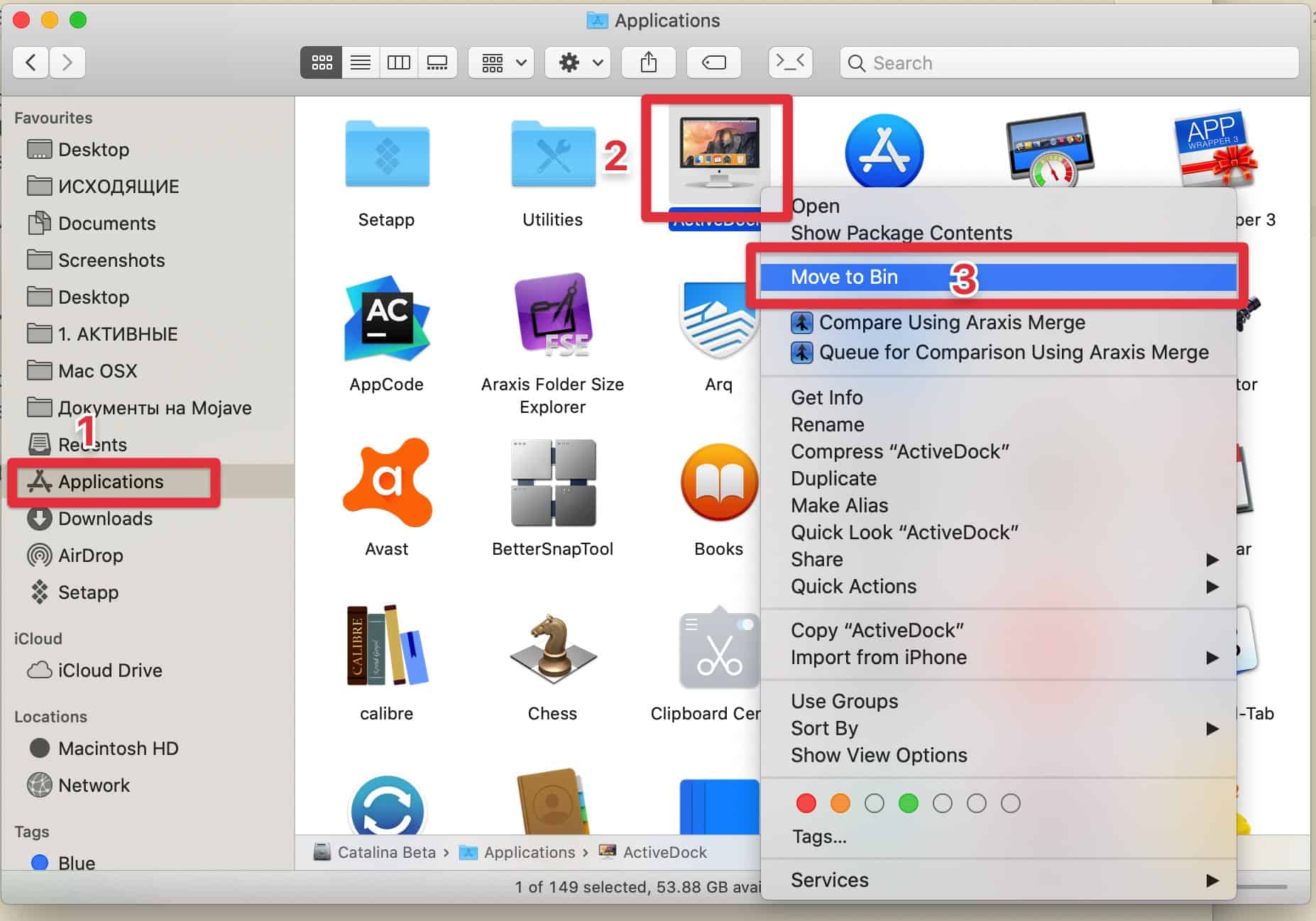
For most apps: Open Finder. Go to Applications folder. Drag the app to Trash. Empty Trash.
For complete removal: Use a dedicated uninstaller or AppCleaner. It finds and deletes hidden files too.
That is the simple version. But there is more you need to know. Especially if you care about free space and system health.
How to Remove Installed Apps from Mac?
Apple makes uninstalling look easy. Too easy. You drag an app to Trash. The app disappears. You feel done. But here is what stays behind:
Preferences files. These sit in ~/Library/Preferences. They remember your settings. Even after the app is gone.
Caches. Stored in ~/Library/Caches. Temporary files the app downloaded. Some caches grow to 1GB or more.
Application support files. ~/Library/Application Support/. Some apps dump entire databases here.
Containers. For Mac App Store apps. Found in ~/Library/Containers/.
I tested this on my own Mac last week. Installed a small note-taking app. Used it for five minutes. Dragged it to Trash. Then scanned for leftovers.
Read Also: Fixing Pressure Damage on Your MacBook Pro Screen: A Complete Guide
Found 47 leftover files. Total size? 89MB.
For five minutes of use.
Now imagine apps you used for months. The junk piles up.
1: The Simple Way (For Basic Users)
This works fine for most people. Especially if you do not care about a few hundred MB of leftover files. Step by step:
Open a new Finder window.
Click Applications in the left sidebar.
Find the app you want to remove.
Drag it to the Trash icon in your Dock.
Right-click Trash. Click Empty Trash.
Done.
When to use this method:
-
You are not worried about storage space
-
The app came from the Mac App Store
-
You only installed it recently
-
You plan to reinstall the same app later
When to avoid this method:
-
The app has been on your Mac for months
-
You are running low on free space
-
You want a truly clean system
-
The app is acting buggy (leftover files might cause conflicts)
2: The Complete Clean (What I Use)
This gets rid of everything. Every single file the app ever touched. You need a free tool called AppCleaner. I have used it for three years. Works perfectly.
Download AppCleaner from the official website. Not the Mac App Store. The store version is different.
How to use it:
Open AppCleaner.
Drag the app from your Applications folder into the AppCleaner window. AppCleaner scans for all related files. Shows you a list. Usually 10 to 50 files.
Click Remove.
Confirm. Enter your password if asked.
Empty your Trash.
That is it.
I ran AppCleaner on a game I stopped playing six months ago. It found 1.2GB of leftover files. I had no idea.
What About Apps with Built-in Uninstallers?
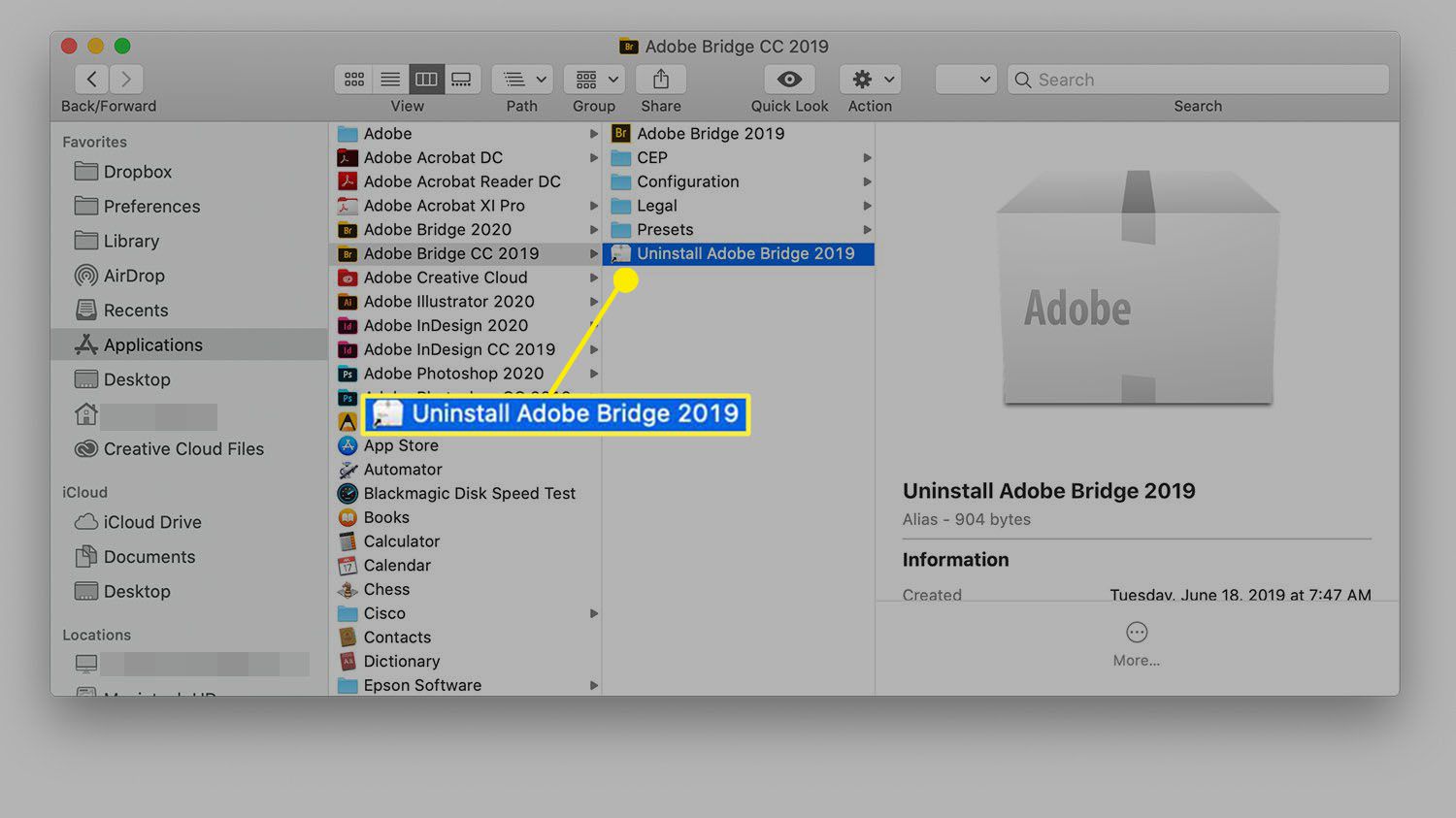
Some apps come with their own uninstaller. Look for these in the Applications folder:
-
A second icon named "Uninstall [App Name]"
-
A folder named "[App Name] Uninstaller"
-
An option in the app's menu bar under Help or Preferences
Adobe apps have uninstallers. So do Microsoft Office apps. Steam games too.
Always use the official uninstaller if available. The developer knows exactly where their files hide.
I skipped the Adobe uninstaller once. Dragged Photoshop to Trash instead. Spent an hour manually hunting down leftover files later. Not fun.
How To Remove Mac App Store Apps?
App Store apps are different. Apple sandboxes them. They cannot scatter files everywhere. But they still leave some leftovers.
You Must Also Like: How to Screen Record on Mac: A Complete Beginner-to-Advanced Guide
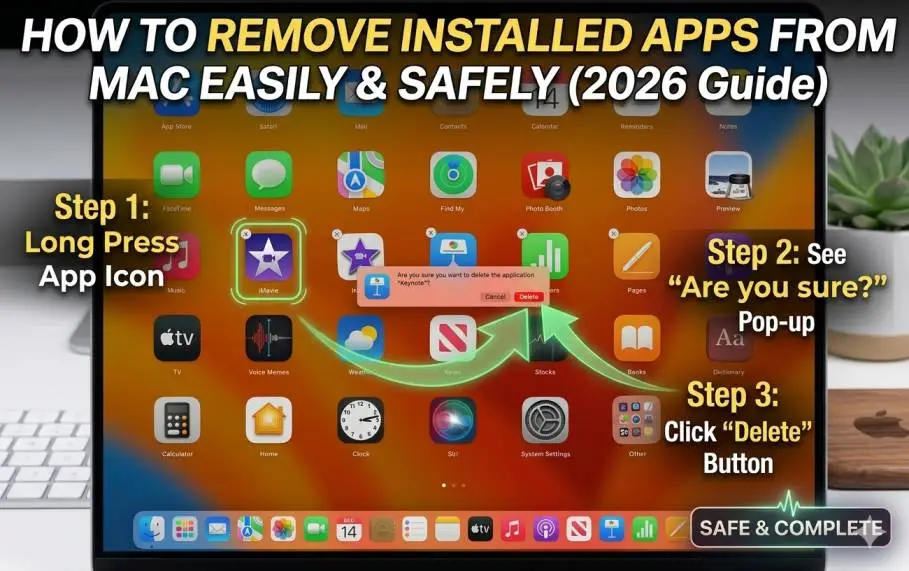
The easy way: Hold the Option key. Click and hold any app icon in Launchpad. Icons start jiggling. Click the X that appears. Confirm.
The Finder way: Open Applications folder. Drag the App Store app to Trash.
The clean way: Use AppCleaner anyway. It still finds leftover containers and preferences.
I tested this with a random App Store calculator app. Dragging to Trash left behind 12 preference files. AppCleaner caught them all.
What About Apps Installed via Homebrew?
If you use the terminal, you might have used Homebrew. How do i install printer on mac is a different topic. But for Homebrew apps, removal is different.
Open Terminal.
Type brew list to see all Homebrew-installed apps.
Type brew uninstall [app name] to remove one.
Type brew cleanup to remove old versions and cache files.
I manage about 15 Homebrew packages on my Mac. The uninstall command removes everything cleanly. No leftover mess.
What To Do When "The macOS Installation Couldn't Be Completed"
Sometimes you see this error. the macOS installation couldn't be completed shows up when updating or reinstalling macOS. This usually happens because old app leftovers conflict with the installer.
Fix it:
Restart your Mac. Try the installation again.
If that fails, boot into Safe Mode. Restart and hold Shift key immediately. Install from there. If Safe Mode fails, check your leftover app files. Use AppCleaner to remove old third-party apps.
Especially antivirus and system cleaners. They cause the most conflicts. I ran into this error on my 2019 MacBook Pro. An old VPN app left kernel extensions behind. Removing that app fixed the installation.
Why ROBLOX Cannot Continue Installation on Mac (And How To Fix)?
ROBLOX cannot continue installation mac is a common complaint in gaming forums. The error appears when old ROBLOX files stay behind after a failed uninstall.
Fix it:
Open Finder. Press Command + Shift + G.
Type ~/Library and press Enter.
Look for these folders: Preferences, Caches, Application Support.
Search for "Roblox" inside each one. Delete everything you find.
Empty Trash.
Restart your Mac.
Download ROBLOX again from the official website. Install fresh.
This worked for my nephew's Mac last month. He had tried to uninstall ROBLOX by dragging it to Trash. Leftover files blocked the new installation.
Common Removal Mistakes I See People Make
Not emptying the Trash. The app still takes up space until you empty it. I have seen people "delete" apps and leave them in Trash for months.
Deleting system apps. Safari. Mail. Maps. You cannot truly delete these. Even if you try, macOS protects them. Do not waste your time.
Using CleanMyMac X for everything. That app is fine. But it misses some leftover files. I have tested it against AppCleaner. AppCleaner finds more.
Forgetting to check Login Items. Some apps add themselves to startup. Removing the app does not remove the Login Item. Go to System Settings > General > Login Items. Remove anything related to deleted apps.
How To Remove Apps That Will Not Delete
Some apps refuse to move to Trash. You get an error: "The item is in use."
Fix it:
Restart your Mac. Try again immediately after restart. The app cannot be in use if it never opened.
If that fails, boot into Safe Mode. Restart and hold Shift. Safe Mode loads only essential system software. Delete the app from there.
If Safe Mode fails, use Terminal.
Open Terminal. Type sudo rm -rf (with a space at the end). Drag the app from Applications into the Terminal window. Press Enter. Enter your password. The app deletes instantly.
Warning: This command is powerful. Type it exactly right. One wrong character and you could delete the wrong thing.
Manual Cleanup: Finding Leftover Files Yourself
You do not need a third-party tool. You can hunt down leftovers manually.
Where to look:
~/Library/Preferences/ - Look for files named com.[appname].plist
~/Library/Caches/ - Look for folders named after the app
~/Library/Application Support/ - Look for the app's folder
~/Library/Logs/ - Some apps leave crash logs here
~/Library/Containers/ - For sandboxed Mac App Store apps
How to get there:
Open Finder. Click Go in the top menu. Hold Option. Library appears. Click it.
Or press Command + Shift + G. Type ~/Library and press Enter.
I do this manual check once every three months. Takes ten minutes. Frees up a surprising amount of space.
Quick Comparison: Removal Methods
| Method | Time | Leaves Junk? | Best For |
|---|---|---|---|
| Drag to Trash | 5 sec | Yes | App Store apps, recent installs |
| AppCleaner | 30 sec | No | Any third-party app |
| Built-in uninstaller | 1 min | No | Adobe, Microsoft, Steam |
| Manual Library cleanup | 10 min | No | Deep clean, tech-savvy users |
| Terminal sudo rm | 10 sec | Yes (unless you manually find leftovers) | Stubborn apps, advanced users |
How Often Should You Clean Old Apps?
Once a month is enough for most people. I do a quick check every two weeks. Takes two minutes. Remove apps I stopped using. Every three months I do a deep clean.
If you want to how to download free Run AppCleaner on everything I have not opened in 90 days. My Mac has stayed fast for two years doing this. No reinstalling macOS. No slowdowns.
One Last Thing Before You Delete
Some apps store your data outside the Applications folder.
Music production apps keep sample libraries in Documents.
Photo editors keep presets in Pictures.
Game launchers keep saved games in Documents or Library.
AppCleaner does not find these. They are not system files. They are your personal files.
Before deleting an app you used heavily, check where it saved your work. Move those files somewhere safe first.
I lost a Photoshop brush set this way. Deleted the app. Did not realize my custom brushes lived inside Application Support. Gone forever.
The Final Thoughts
Learning how to remove installed apps from mac properly saves you headaches later. The short version: Drag to Trash is fine for quick removals. Use AppCleaner for a deep clean.
Do not forget to empty your Trash. Do not ignore leftover files. Check Login Items once in a while. Your Mac will thank you. Your storage space will thank you. And you will not find mystery pop-ups six months later.
I clean my apps the right way now. Takes five extra seconds. Worth every one.