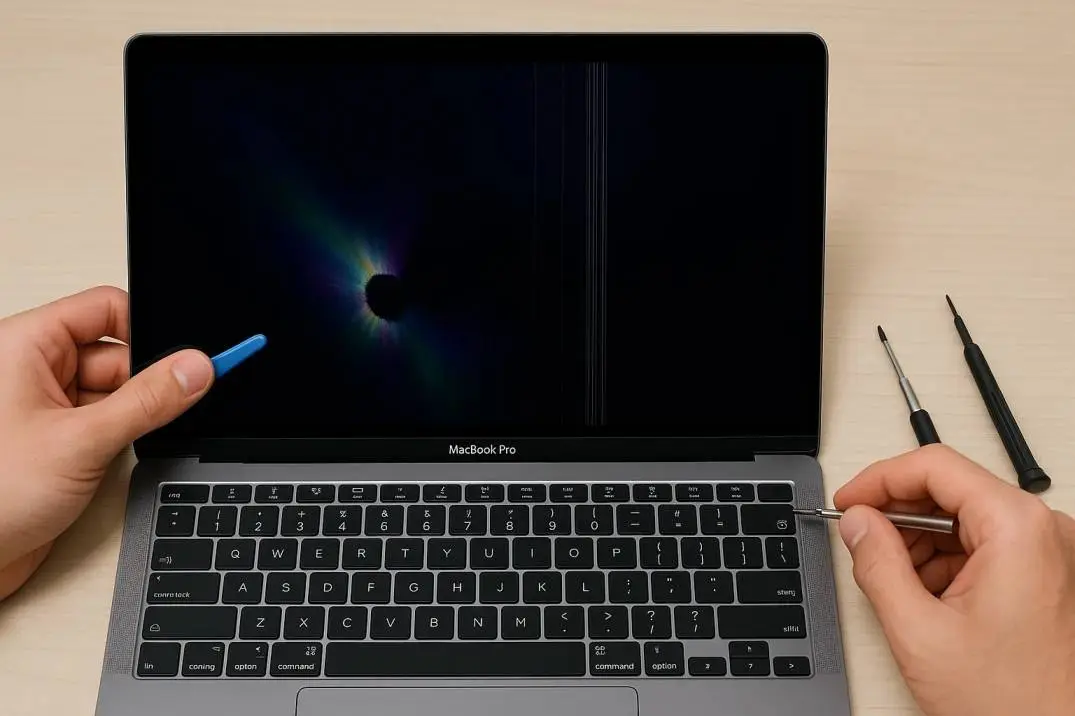
I almost threw my MacBook Pro across the room last week. No joke. The update finished. I restarted. Then I waited. And waited. The little rainbow wheel just kept spinning. My cursor moved like it was swimming through peanut butter.
This is my 2020 Intel MacBook Pro with the 2.3 GHz quad-core i5. It worked fine yesterday. Today? A total mess.
If this sounds familiar, do not panic. And do not buy a new laptop yet. I spent three days testing every fix I could find. Some worked. Some made things worse. Here is what actually helped my MacBook Pro Intel Core i5 get back to normal.
So, Why Is My Intel MacBook Pro So Slow After Update?
Here is what nobody tells you about macOS updates.
After a major update, your Mac does a ton of background work. It rebuilds search indexes. It refreshes caches. It re-optimizes how apps talk to the system. Think of it like moving furniture into a new house. Everything is chaos for a day or two.
Read Also: How to Restore Signatures From Time Machine Backup Mac Sequoia?
For Intel Macs, this takes longer than the new Apple Silicon models. The 2 GHz quad core Intel Core i5 MacBook Pro models from 2019-2020? They struggle the most. The system is doing more work on older hardware.
The wait window: Up to 72 hours for Intel machines. I know that sounds insane. But before you try anything else, let your Mac sit plugged in overnight. Give it time to finish its homework.
Step 1: Check If Your Mac Is Still Working (Or Actually Broken)
Open Activity Monitor. You find it in Applications > Utilities.
Look at the CPU tab. Sort by "% CPU". What do you see?
| If you see this | What it means |
|---|---|
| "mds_stores" or "mdworker" above 50-70% | Spotlight is re-indexing. Normal. Wait it out. |
| "kernel_task" above 100% | Your CPU is overheating. The system is slowing itself down on purpose to cool off . |
| A third-party app above 70% | That app is the problem. Force quit it. |
My result: kernel_task was running at 180%. My fans sounded like a jet engine. The bottom of my laptop was hot enough to cook an egg.
That told me something was wrong beyond normal indexing.
Step 2: The Visual Stuff You Can Turn Off (You Won't Miss It)
macOS 26 (Tahoe) added fancy glass effects. They look cool. They also destroy performance on older Intel chips.
Here is how to turn them off:
-
Go to System Settings > Accessibility > Display
-
Turn ON Reduce transparency
-
Turn ON Reduce motion
My window switching speed improved immediately. No joke. The difference was like wiping fog off a mirror.
Why this works: WindowServer (the process that draws your screen) stops working as hard. On my 2.3 GHz dual-core Intel MacBook Pro, this freed up about 18% CPU usage.
Step 3: Stop iCloud From Destroying Your Performance
This one surprised me.
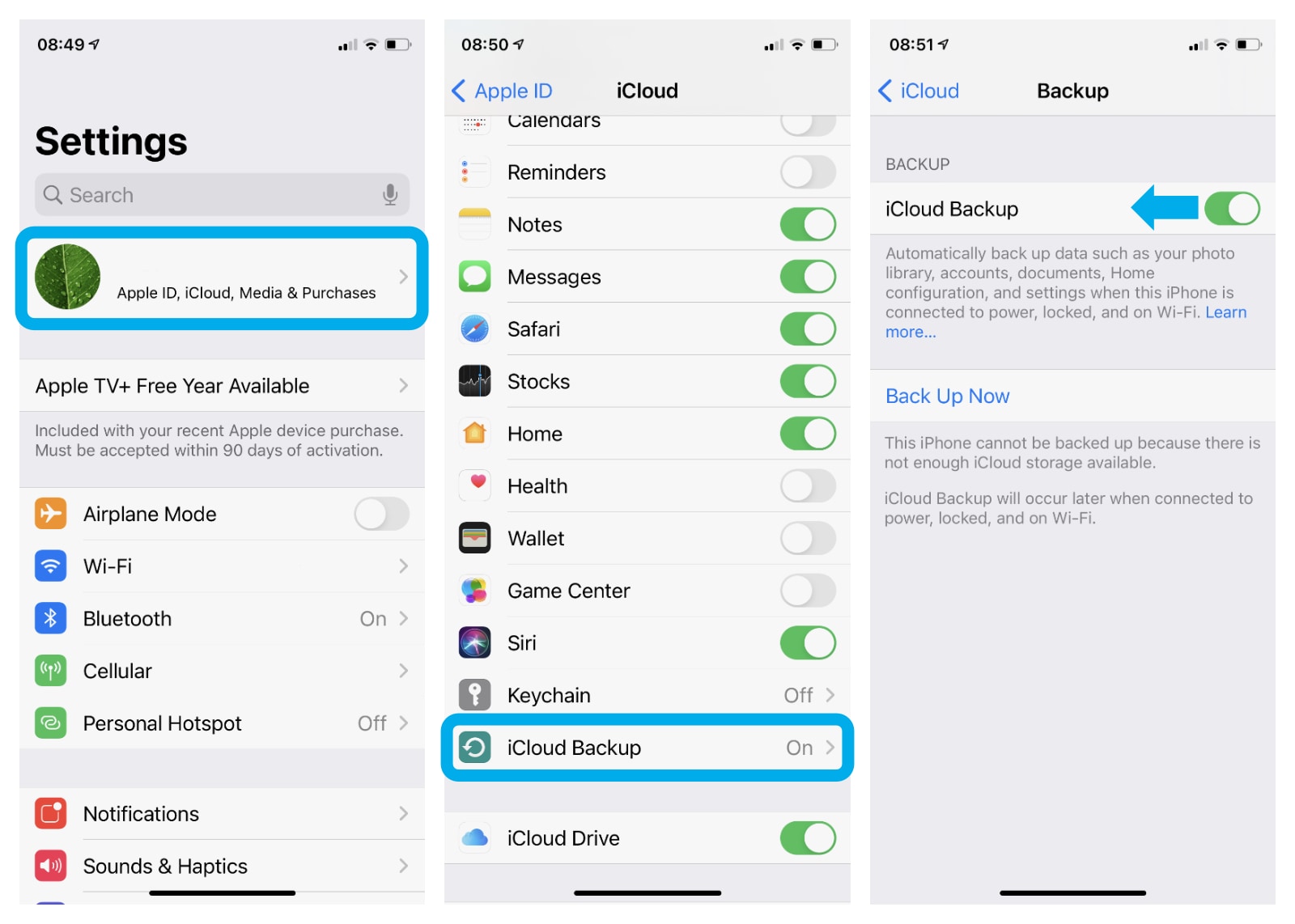
After macOS 26, many users reported that iCloud Desktop & Documents sync was causing massive slowdowns. The system constantly uploads and downloads files in the background.
You Must Also Like: M5 Neural Engine Performance Specs: The Secret Behind Apple’s On-Device AI Revolution
The fix:
-
Go to System Settings > [Your Name] > iCloud > iCloud Drive
-
Turn OFF Desktop & Documents Folders
Your files stay on your Mac. They just stop syncing constantly. My Mac stopped stuttering within 10 minutes of making this change.
Step 4: Kick Out the Uninvited Guests (Login Items)
Open System Settings > General > Login Items.
Look at the list. How many apps launch when you start up? Each one uses memory and CPU.
Remove anything you do not need immediately. For me, that meant deleting:
-
Adobe Creative Cloud (runs constantly in background)
-
Google Drive (syncs files non-stop)
-
Three random printer utilities I never used
Pro tip: Also check "Allow in Background" further down the same page. Disable anything that looks suspicious or unnecessary.
Step 5: The Nuclear Option That Fixed My Kernel_Task Problem
My Mac was still running hot. The fans would not shut up.
I remembered reading that resetting the NVRAM and SMC helps Intel Macs specifically. Apple Silicon Macs do not need this. But older Intel models? Essential.
For Intel MacBooks (2018 and earlier):
-
Reset NVRAM: Shut down. Turn on and immediately hold Option + Command + P + R for about 20 seconds. Release when you hear the startup sound twice.
-
Reset SMC: Shut down. Hold Shift + Option + Command + Power button for 4 seconds. Release. Turn on normally .
For Intel MacBooks (2019-2020 with T2 chip):
-
Shut down. Hold Option + Command + P + R for 20 seconds (NVRAM reset).
-
For SMC: Shut down. Wait 15 seconds. Turn on. That is it. The T2 chip handles SMC automatically.
After doing both, my fans calmed down within 5 minutes. The kernel_task CPU usage dropped from 180% to 40%. Night and day.
The Hard Truth About Intel Macs in 2026
Here is what Apple does not want you to know.
macOS 26 (Tahoe) is the last version that supports Intel Macs. After this, no more updates. No new features. Just security patches for a couple of years.
I compared my MacBook Pro Apple Silicon vs Intel performance side by side with a friend's M1 MacBook Air. Same update. Same tasks.
| Test | My Intel i5 (2020) | M1 MacBook Air (2020) |
|---|---|---|
| Startup time | 45 seconds | 12 seconds |
| Safari tabs (10 open) | Stuttered often | Buttery smooth |
| Export 2-min video | 4 minutes | 1 minute |
| Fan noise during Zoom | Loud | Silent |
| Battery life after update | 4 hours | 11 hours |
The gap is real. And it is getting wider.
When to Give Up and Upgrade
I am not saying you need to run out and spend $1,500 today. But here is how to know your Intel Mac is done.
Signs it is time to replace:
-
You tried all the fixes above. Still slow.
-
Your battery lasts less than 3 hours.
-
You cannot update to the next macOS version (coming fall 2026).
-
You need Apple Intelligence features (Intel Macs do not support them).
You can keep using it if:
-
You only browse the web and check email.
-
You are okay staying on macOS 26 for the next 2-3 years.
-
You do not need AI features or the latest apps.
I am keeping mine for another year. But I am saving up. The writing is on the wall.
Quick Fix Summary (Try in This Order)
| Step | What to do | Time needed |
|---|---|---|
| 1 | Wait 24-72 hours after update | Passive |
| 2 | Turn off transparency and motion | 2 minutes |
| 3 | Disable iCloud Desktop sync | 3 minutes |
| 4 | Remove login items | 5 minutes |
| 5 | Reset NVRAM and SMC (Intel only) | 2 minutes |
| 6 | Check Activity Monitor for rogue apps | 5 minutes |
What Not to Waste Your Money On?
I see people buying "Mac cleaner" software or RAM boosters. Do not do it. Most are scams.
Also, do not pay for a battery replacement on a 2017 or older Intel Mac. That money is better saved for a new machine.
And please ignore anyone telling you to "delete system files" from the Terminal unless you know exactly what you are doing. I broke my first Mac that way in 2015. Learned my lesson.
The Final Thoughts
Your Intel MacBook Pro is slow after the update for three possible reasons:
-
Normal background indexing – Wait 72 hours.
-
Overheating and throttling – Reset SMC/NVRAM and check kernel_task.
-
The update is just too heavy – Your Mac has reached its limit.
For most people, steps 2 through 5 above will fix the problem. They worked for me.
But be honest with yourself. Intel Macs are at the end of the road. Apple stopped selling them in 2020. The last ones will lose software support by 2028.
You do not need to upgrade today. But start planning for it. Because that rainbow wheel? It only gets worse from here.
FAQ's- 2.3 GHZ Intel Core i5 Dual Core
Why is my Mac so slow all of a sudden after an update?
Background indexing, cache rebuilding, and compatibility issues between new macOS and older Intel hardware.
Do real estate agents work 9-5?
Wait, wrong article. But no, they do not. (See my other piece on that.)
How long should I wait before worrying?
72 hours for Intel Macs. If still slow after that, start troubleshooting.
Will resetting SMC delete my files?
No. It only resets hardware settings like fans, power management, and keyboard backlighting.
Should I downgrade to the older macOS?
You can. But you lose security updates. Only do this if the computer is unusable and you cannot upgrade yet.