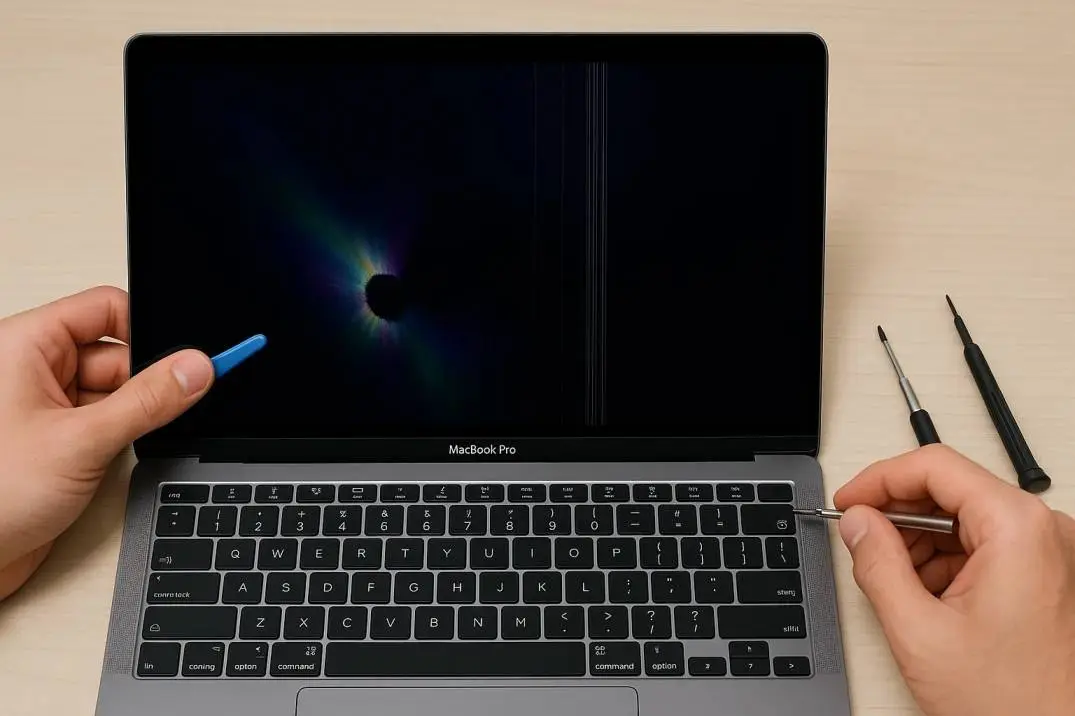
Your MacBook Pro screen starts flickering. It's annoying. It's distracting. And it makes you wonder if your expensive laptop is dying.
I've been there. My 2020 MacBook Pro started flickering last year. At first, it was subtle. A slight glitch here and there. Then it got worse. The screen would flash rapidly. I could barely work.
After countless hours of research and testing, I finally fixed it. Here's everything I learned about the MacBook Pro screen flickering 2020 issue.
Why Is My MacBook Pro Screen Flickering?
The MacBook Pro screen flickering 2020 problem can have many causes. Some are simple software issues. Others point to hardware failure. Here are the most common reasons:
Read Also: How to Clean Nano Texture Glass on MacBook Pro Safely?
Software conflicts. Third-party apps can interfere with display drivers. This is especially common after macOS updates.
Graphics driver issues. The graphics drivers may need updating. Outdated or corrupted drivers cause display problems.
Hardware problems. The display cable might be loose or damaged. The logic board could have issues. The screen itself might be failing.
Settings errors. Incorrect display settings can cause flickering. This includes refresh rate, resolution, and color profile.
Overheating. When your MacBook gets too hot, it can cause display issues. The fans might not be working properly.
External displays. Connecting to external monitors can sometimes trigger flickering issues.
Common MacBook Pro Screen Flickering 2020 Scenarios
Flickering at Startup
The screen flickers during boot but works normally afterward. This often indicates a software issue. It might be related to login items or startup programs.
Intermittent Flickering
The screen works fine for hours. Then it starts flickering randomly. This is frustrating because it's hard to diagnose. It could be a loose cable or overheating issue.
Flickering When Scrolling
The MacBook Pro screen glitch happens only when scrolling. This often points to graphics driver problems. It could also be a RAM issue.
Flickering in Specific Apps
Certain apps cause flickering while others work fine. This indicates a software conflict. The app might not be optimized for your Mac's graphics hardware.
How to Fix MacBook Pro Screen Flickering?
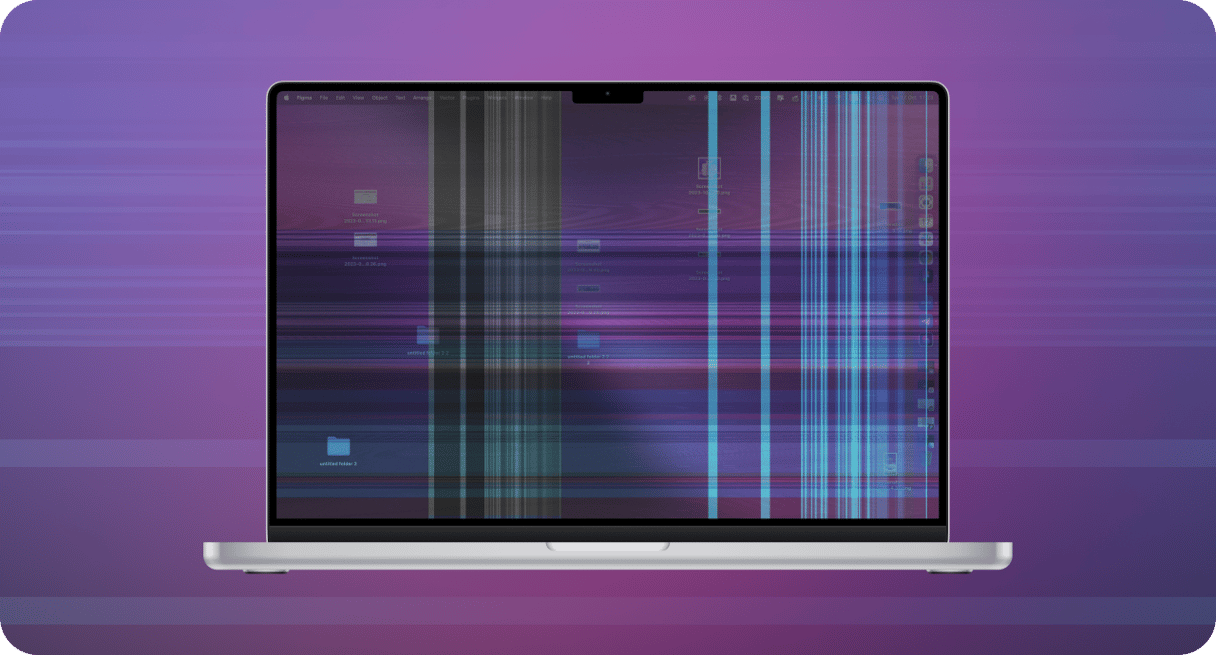
Here are the fixes I tested. Start with the simplest ones first.
Fix 1: Restart Your MacBook
This sounds basic. But it works more often than you'd think. Restarting clears temporary files and resets system processes. Hold the power button and select Restart.
Fix 2: Check for macOS Updates
Apple regularly releases updates that fix display issues. Go to System Settings > General > Software Update. Install any available updates. This fixed my flickering issue once.
You Must Also Like: Fixing Pressure Damage on Your MacBook Pro Screen: A Complete Guide
Fix 3: Reset NVRAM/PRAM
NVRAM stores display settings. Resetting it can fix flickering. Here's how:
-
Shut down your MacBook
-
Turn it on and immediately press Option + Command + P + R
-
Hold for about 20 seconds
-
Release the keys
Fix 4: Reset SMC
The System Management Controller manages power. Resetting it can help with display issues. The steps depend on your Mac model. For most 2020 models with the T2 chip:
-
Shut down your MacBook
-
Press and hold Control + Option + Shift + Power button for 10 seconds
-
Release all keys
-
Press the Power button to turn it on
Fix 5: Disable Automatic Graphics Switching
Your MacBook has two graphics cards. One for battery life. One for performance. The switching can cause flickering. Here's how to disable it:
-
Go to System Settings > Battery
-
Click Options
-
Disable Automatic graphics switching
Fix 6: Adjust Display Settings
Sometimes the settings are the problem. Try adjusting the refresh rate:
-
Go to System Settings > Displays
-
Click Refresh Rate
-
Try a different setting. For most MacBooks, 60Hz is the default.
Fix 7: Disable True Tone
True Tone adjusts the display based on ambient light. It can occasionally cause flickering. Disable it in System Settings > Displays.
Fix 8: Boot in Safe Mode
Safe Mode loads only essential system software. It disables third-party drivers and startup items. If the flickering stops in Safe Mode, the issue is software-related.
-
Shut down your MacBook
-
Turn it on and immediately press and hold Shift
-
Release Shift when you see the login screen
-
Test if the flickering continues
Fix 9: Delete Display Preference Files
Corrupted display preferences can cause flickering. Here's how to remove them:
-
Open Finder
-
Go to Go > Go to Folder
-
Type
~/Library/Preferences/ByHost/ -
Look for files starting with
com.apple.windowserver -
Move them to the Trash
-
Restart your MacBook
Fix 10: Run Apple Diagnostics
This is a built-in hardware test. It can identify hardware problems.
-
Shut down your MacBook
-
Turn it on and immediately press and hold D
-
Release D when you see the diagnostic screen
-
Follow the on-screen instructions
When to Seek Professional Help?
If none of these fixes work, you might have a hardware problem. Here's when to visit an Apple Store or authorized service provider:
The screen flickers during startup and in Safe Mode. This points to hardware failure.
You see physical damage. Cracks, liquid damage, or impacts can cause display problems.
Apple Diagnostics shows a hardware error. This confirms the issue.
The flickering gets worse over time. Hardware problems typically worsen.
How to Prevent Future Flickering?
Keep your MacBook cool. Use it on flat surfaces. Avoid blocking the vents. Overheating causes many issues.
Update macOS regularly. Apple fixes bugs with each update.
Avoid third-party display utilities. They can interfere with system settings.
Be careful with physical handling. The display cable is fragile. Don't open the lid too roughly.
The Final Thoughts
The MacBook Pro screen flickering 2020 issue was a nightmare for me. I tried almost everything before finding the fix. For me, it was a software conflict. Deleting the display preference files solved the problem.
But that won't work for everyone. Hardware issues are real. The 2020 models have had documented display problems. Some users needed screen replacements. Others had logic board issues.
Start with the software fixes. They're free and often work. If those fail, don't delay. Visit an Apple Store or authorized service provider. The sooner you diagnose the problem, the cheaper it will be to fix.
Your MacBook Pro is a valuable investment. Don't let a flickering screen ruin your experience. Take action today.