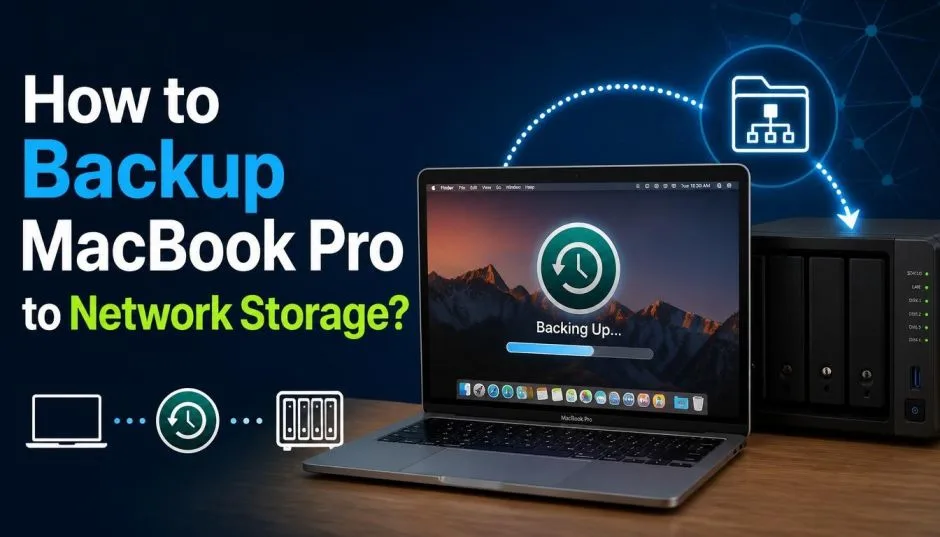
Backing up a MacBook Pro to network storage is not plug-and-play. Apple's Time Machine supports NAS devices, but only through the SMB protocol, and only if the NAS is configured correctly.
I have set this up on three different networks, and every time something went wrong first. The NAS needs a dedicated shared folder. The Mac needs the right credentials.
The protocol must be SMB, not AFP, because Apple killed AFP support in macOS 27 and later. Get those three things right and the backup runs itself.
Get them wrong and Time Machine will either refuse to see the disk or fail halfway through the first backup. Here is the exact process, the hardware that actually works, and the mistakes that waste your evening.
Truth About Network Backup vs. External Storage for MacBook Pro

A direct-connected external drive is faster. A network drive is more convenient. That trade-off matters more than most guides admit. A USB-C or Thunderbolt SSD can back up a 500GB MacBook Pro in under an hour. A network backup over Wi-Fi will take hours, sometimes a full day for the first run.
Read Also: MacBook Pro Display Problems Horizontal Lines: Are You Looking at a Hardware Failure?
The difference comes from the connection. Thunderbolt moves data at 40Gbps. Wi-Fi moves it at whatever your router manages on a good day.
When network backup makes sense: You have multiple Macs and want one central backup target. You leave the MacBook Pro docked at a desk most of the time. You want backups to run overnight without plugging anything in.
When it doesn't: You travel constantly. You need fast recovery. You have a small apartment and a single Mac.
What You Actually Need for Network Storage Backup?
A NAS that supports Time Machine over SMB. Synology is the most documented option. Their knowledge base walks through the exact settings. QNAP and Asustor also work, but check the vendor documentation first. Apple's own support page lists NAS as a valid Time Machine target, but only with SMB.
A wired connection for the first backup. Wi-Fi will work, but it doubles the time. Plug the MacBook Pro into the router with Ethernet for the initial run. Switch to Wi-Fi after the first backup completes.
Patience. The first network backup copies everything. Every subsequent backup copies only changes. That first run is the hurdle.
Step-by-Step: Setting Up Synology NAS for Time Machine
Synology has the clearest documentation, so I will use their process. The steps for other NAS brands are similar but not identical.
Step 1: Create a Shared Folder on the NAS
Log into your NAS admin panel. Open Control Panel, then Shared Folder. Click Create. Name it something obvious like "TimeMachineBackup." Skip the recycle bin and encryption options. Synology specifically warns against encrypted shared folders for Time Machine targets.
Step 2: Enable SMB and Bonjour Discovery
Go to Control Panel, then File Services. Open the SMB tab. Check "Enable SMB service." Then go to the Advanced tab. Check "Enable Bonjour service discovery" and "Enable Bonjour Time Machine broadcast via SMB." Click "Set Time Machine Folders" and select the folder you just created.
Step 3: Verify SMB Settings
In the SMB Advanced Settings, confirm these three options: Maximum SMB protocol set to SMB3, Opportunistic Locking enabled, SMB2 lease enabled. These settings prevent the connection drops that plague poorly configured NAS backups.
Step 4: Create a User for Time Machine
Create a dedicated NAS user account for backups. Give it read and write permissions on the Time Machine shared folder. Set a quota if you want to cap how much space backups can consume. This user is what your Mac will log in with.
You Must Also Like: How to Clean Nano Texture Glass on MacBook Pro Safely?
Step 5: Connect from the MacBook Pro
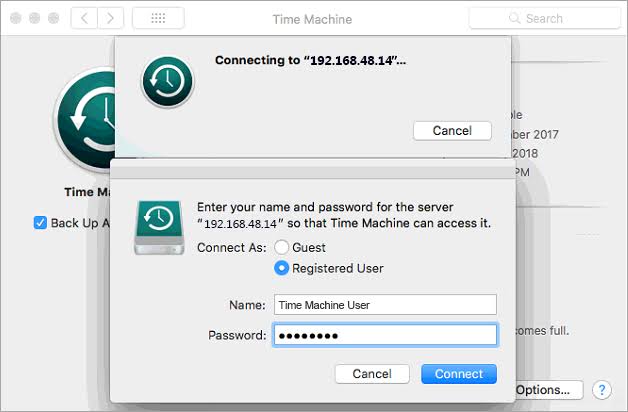
On your Mac, open System Settings, then General, then Time Machine. Click Add Backup Disk. Your NAS shared folder should appear in the list if Bonjour discovery worked. Select it. Enter the username and password you created in Step 4. Click Connect.
Step 6: Start the Backup
Time Machine will ask if you want to encrypt the backup. Encryption is your choice. It protects your data if someone steals the NAS. It also means you cannot recover files without the password. Choose based on your threat model, not someone else's advice.
Click "Set Up Disk." The backup starts. Plug in Ethernet if you haven't already.
What Goes Wrong and How to Fix It?
The NAS does not appear in Time Machine. Bonjour discovery failed. Check that you enabled Bonjour Time Machine broadcast in the NAS settings.
If that does not work, connect manually by typing the server address in Finder (Command+K) using the format smb://NAS-IP-address.
Time Machine asks for credentials repeatedly. The user account lacks permissions on the shared folder. Go back to the NAS admin panel and verify read/write access for that specific folder.
The backup fails partway through. This usually means the SMB connection dropped. Check the NAS logs for disconnect events. Wired Ethernet fixes most of these. If the NAS sits on a mesh Wi-Fi node, move it to the main router.
macOS 27 or later refuses AFP connections. That is expected. Apple removed AFP support. The NAS must use SMB. Any guide telling you to enable AFP is outdated.
External Storage for MacBook Pro: When to Skip the Network?
If the network backup setup sounds like too much work, a direct external drive solves the problem in five minutes.
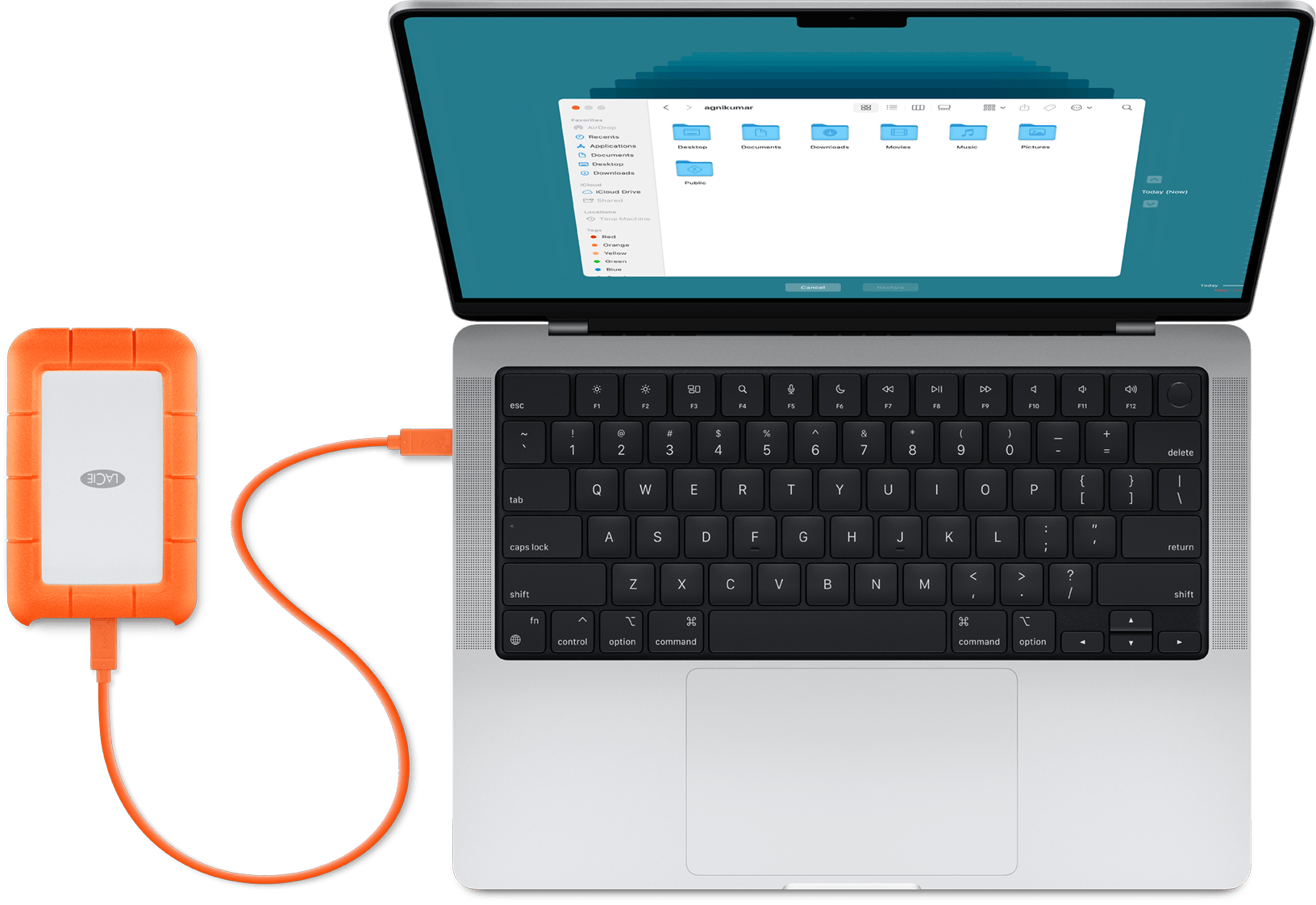
For most people: A Samsung T7 or SanDisk Extreme portable SSD works fine. Both come formatted exFAT, which Macs read without reformatting. Plug it in, open Time Machine, select the drive, click start. Done.
For creative professionals: LaCie Rugged SSD Pro5 is the fastest external SSD PCMag has tested for Mac. It uses Thunderbolt 5 and survives drops up to 10 feet. It costs more. It also handles 8K video editing from the external drive itself.
For backup-only use: A spinning external hard drive costs less per terabyte. It is slower. For Time Machine backups that run in the background, speed does not matter. Capacity does. A 4TB desktop drive costs less than a 2TB portable SSD.
How to Free Up Disk Space on Mac Before Backing Up?
A backup copies everything. If your MacBook Pro is nearly full, the first backup takes longer and the NAS needs more space. Clean house first.
Open System Settings, General, Storage. The storage bar shows what is eating space. System Data often hides large caches. Click the More Info button next to categories to see details.
The quick wins: Empty the Trash. Clear the Downloads folder. Delete old iPhone backups stored on the Mac. Uninstall apps you have not opened in six months. Move large photo or video libraries to an external drive if you have one.
The temporary fix: Start the Mac in Safe Mode. This clears system caches that rebuild automatically. It frees enough space for one backup to complete. Then restart normally.
MacBook Pro Storage Upgrade: What You Cannot Do?
You cannot upgrade the internal storage on modern MacBook Pros. Apple solders the SSD to the logic board. The M6 MacBook Pro starts at 1TB and can be configured up to 4TB at purchase. After purchase, that is it.
The workaround: External storage. A Thunderbolt SSD for active projects. A NAS for backups and archives. A cheap spinning drive for media that rarely changes. This combination costs less than the Apple upgrade and works across multiple machines.
The Final Thoughts
Network backup is worth the setup effort if you have a NAS and multiple Macs. Synology makes it straightforward with documented steps. Use SMB, create a dedicated folder, and wire the first backup.
If you have one MacBook Pro and no NAS, buy an external SSD. It takes five minutes to set up and works every time. The network convenience is not worth the complexity for a single machine.
Either way, back up. The MacBook Pro's soldered storage means a logic board failure takes your data with it. A backup is not optional. It is the only insurance you get.