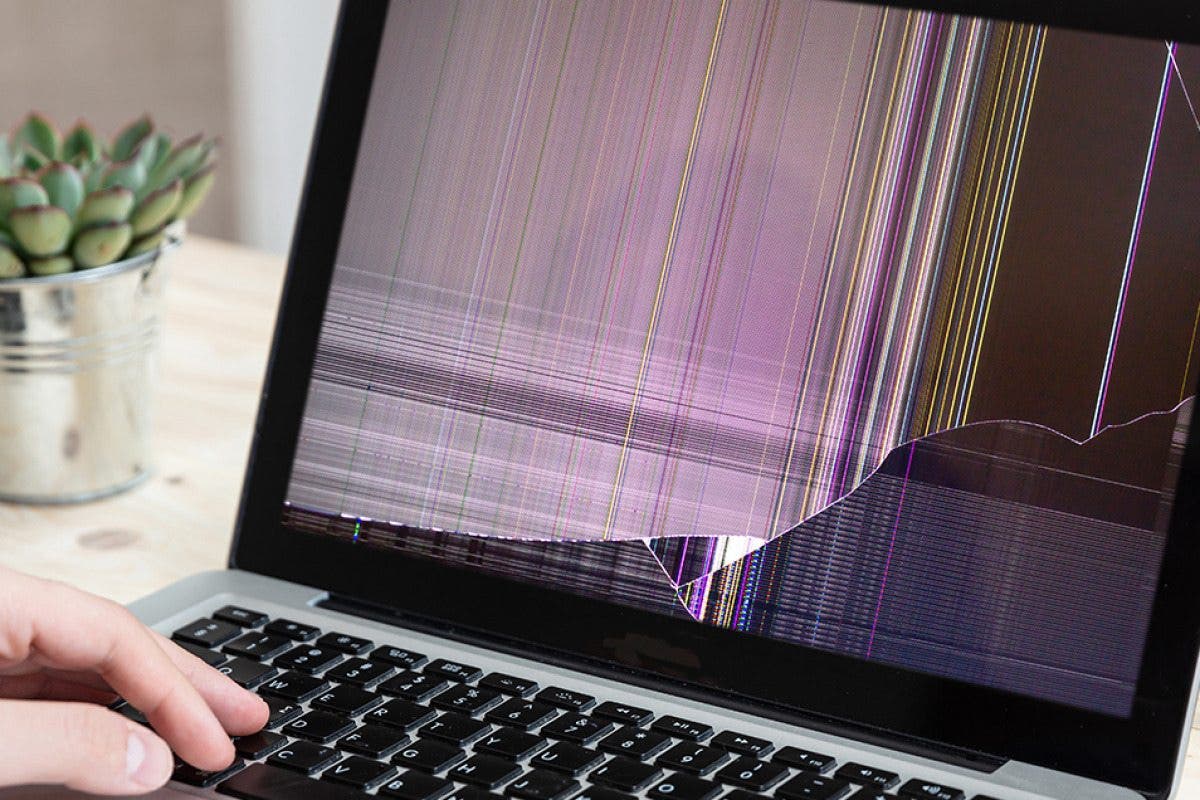
You open your MacBook Pro, and there they are—horizontal lines across the screen. Thin, flickering, sometimes colorful. Your heart sinks. I've been there. It happened to me on a Tuesday morning when I had a deadline looming.
The lines appeared from nowhere, and I spent the next six hours trying every fix I could find. Here's what I learned.
MacBook pro display problems horizontal lines can mean several things. Some are cheap fixes. Some require a new display. The key is knowing which one you're dealing with before you spend money or panic .
What Causes Horizontal Lines on a MacBook Pro Screen?
The display on your MacBook Pro is a complex system. It includes the LCD panel, delicate cables running through the hinge, the GPU on the logic board, and software that controls everything.
Related Article: How to Fix Heat Damage MacBook Pro Screen?
When horizontal lines on screen appear, one of these parts is failing. Here are the common culprits:
Hardware Issues (Most Common)
1. Damaged Display Flex Cable
The cable carries video signals from the logic board to your screen. It runs through the hinge and bends every time you open or close the lid. Over time, it wears out .
If your lines appear only at certain screen angles say, they vanish when the lid is under 45 degrees but return when you open it further this is almost certainly the problem .
Some MacBook Pro models (2016–2019) have a known issue called "Flexgate." Apple routed the cable too tightly around a sharp edge, causing it to fail prematurely . The 2018–2019 13-inch and 15-inch models (A1989, A1990) are particularly prone to this .
2. Physical Damage to the LCD Panel
If you dropped your MacBook or closed the lid on something—a pen, a cable, even a crumb—the LCD can crack. This usually shows as colored or white lines in a specific area. They don't change with the lid angle. They just sit there .
3. GPU Failure
Older Intel MacBook Pros (2011 15-inch and 17-inch, 2013 15-inch with Nvidia) have a history of GPU failure. Heat cycling breaks the solder connections over time.
When this happens, you see horizontal lines across the full screen, often before a crash. The lines may only appear when the machine warms up .

4. T-CON Board Failure
The T-CON board controls the display timing. A failing T-CON board can cause horizontal stripes that flicker or persist .
Software Issues (Rare but Possible)
Horizontal lines that are caused by software are unusual, but they do happen. A graphics driver glitch, a buggy app, or corrupted system files can cause display artifacts .
You Must Also Like: Apple Launch 13 Inch MacBook Pro Display Backlight Service Program 2025
The key is distinguishing software from hardware.
The Screenshot Test: Your First Step
Take a screenshot (Shift-Command-4) and view it on another device your iPhone, another computer, or even email it to yourself .
If the lines appear in the screenshot: Your problem is likely software or GPU-related. The GPU is outputting faulty data .
If the screenshot looks clean: Your display hardware is the issue. The LCD panel, the flex cable, or the connector is failing .
This single test saved me hours of pointless troubleshooting. The lines appeared in my screenshots—pointing to a GPU issue, not a broken screen.
Step-by-Step Troubleshooting
1. Restart Your Mac
Try a clean restart. It resets graphics services and drivers. Sometimes a transient glitch disappears after a restart and stays gone .
2. Update macOS and Your Apps
Go to System Settings > General > Software Update. Apple rolls out patches for graphics issues in system updates . Outdated apps—especially Chrome, Lightroom, or Zoom—can also trigger rendering problems .
3. Boot into Safe Mode
On Apple Silicon: Shut down. Press and hold the power button until "Options" appears. Choose your startup disk while holding Shift .
On Intel: Shut down. Press and hold Shift immediately while turning it back on. Don't release Shift until you see the login window .
If the lines vanish in Safe Mode, third-party extensions or login items are involved. If they remain, it's almost certainly hardware .
4. Reset NVRAM/PRAM and SMC (Intel Only)
NVRAM reset: Power on and hold Option-Command-P-R for about 20 seconds. This resets display resolution, color profile references, and video settings .
SMC reset on T2 models: Press and hold Control-Option-Shift on the right side for 7 seconds. Keep holding and press power for 7 more. Release, wait, then power on .
Apple Silicon: There is no separate SMC reset. A full shutdown, wait 30 seconds, then start normally accomplishes the same thing .
5. Clean the Display Surface
Remove any cases, covers, or screen protectors. Clean the display with a soft, slightly damp, lint-free cloth. Don't use aerosol sprays, solvents, abrasives, or cleaners with hydrogen peroxide .
Hardware Diagnosis: What to Look For?
Angle Test
Open and close the lid slowly at different angles. If the lines appear or disappear at specific angles, or if gently flexing the hinge area changes the display, the flex cable is the prime suspect .
Trending Post: Screenshot MacBook Air Like a Pro with These Shortcuts
This is a classic sign of a failing cable. Replacing it costs far less than a full display.
External Monitor Test
Connect your MacBook Pro to an external display. If the external screen is clean and only your built-in screen shows lines, the problem is internal—your display or its cable, not the GPU .
If both screens show lines, the GPU or logic board is faulty .
Repair Options and Costs
Display Flex Cable Reseat or Replacement
This is the cheapest fix. A technician can reseat the cable or replace it if worn. Costs vary by model and location, but expect:
-
Cable reseat: $50–100
-
Cable replacement: $100–300
For Flexgate models (2016–2019 13-inch), Apple ran a free repair program for the 2016 and 2017 models. Check if your serial number qualifies .
Full Display Assembly Replacement
If the LCD panel itself is damaged or the cable is soldered to the T-CON board (as in many models), you need a full display assembly. Costs range from $400–800 depending on the model and whether you go through Apple or a third-party repair shop .
Logic Board Repair
If the GPU has failed, you're looking at logic board repair or replacement. This is the most expensive option—$600–1200 in many cases. For older Intel models (2011, 2013), the repair may exceed the value of the machine .
Which MacBook Models Are Most Affected?
| Model | Known Issue |
|---|---|
| 2016–2019 MacBook Pro (13" and 15") | Flexgate—display cable failure |
| 2018–2019 MacBook Pro (A1989, A1990) | Flex cable wear |
| 2011 MacBook Pro (15" and 17") | GPU failure |
| 2013 MacBook Pro (15" with Nvidia) | GPU failure |
Is It Worth Repairing?
That depends on the model and the fix.
-
Cable issue: Yes. It's a relatively cheap repair, and the machine will work fine afterward.
-
Display damage: Maybe. A new display assembly costs $400–800. If your MacBook Pro is more than 4–5 years old, the repair might cost more than the machine's value. Consider upgrading.
-
GPU failure: Rarely worth it on older models. If your MacBook Pro is 2013 or older, the repair cost often exceeds the machine's worth.
What Not to Do?
Don't attempt DIY repairs unless you have experience. The cables inside the display assembly are delicate. iFixit users who tried replacing cables themselves reported broken connectors, damaged ribbons, and failed attempts . A botched repair can turn a $200 fix into a $700 one.
Don't ignore the problem. A worn cable can damage the T-CON board or the logic board over time. Early intervention saves money.
Don't fall for software-only fixes if you've ruled out software. If the screenshot test shows lines, no amount of cache-cleaning will fix it.
The Final Thoughts
MacBook Pro display problems horizontal lines are usually a hardware fault . The flex cable fails in many models. The LCD cracks. The GPU wears out. Start with the screenshot test. Then test with an external monitor. Check the lid angle.
If the lines change with the lid angle, you're likely looking at a failed cable. This is the cheapest fix. If the lines are permanent and don't change with the angle, the display panel itself may be damaged.
Weigh the repair cost against the value of your machine. A friend's 2018 MacBook Pro showed horizontal lines for six months. He kept using it, dismissing them as minor. One day the screen went entirely black.
The cable failure had damaged the T-CON board, turning a $200 fix into a $700 display replacement. Learn from his mistake. Diagnose early. Fix early. Save your screen—and your wallet.