How to Boot Mac Into Recovery Mode without Keyboard? That sinking feeling when your Mac needs repairs, but your keyboard is broken, or you only have a Windows one. I have been there.
The good news is you are not stuck. You can absolutely boot into Recovery Mode without a Mac keyboard.
Here is a practical guide based on what I have learned and confirmed. I will walk you through the methods for both newer Apple Silicon Macs and older Intel-based Macs.
So, How to Boot Mac Into Recovery Mode without Keyboard?
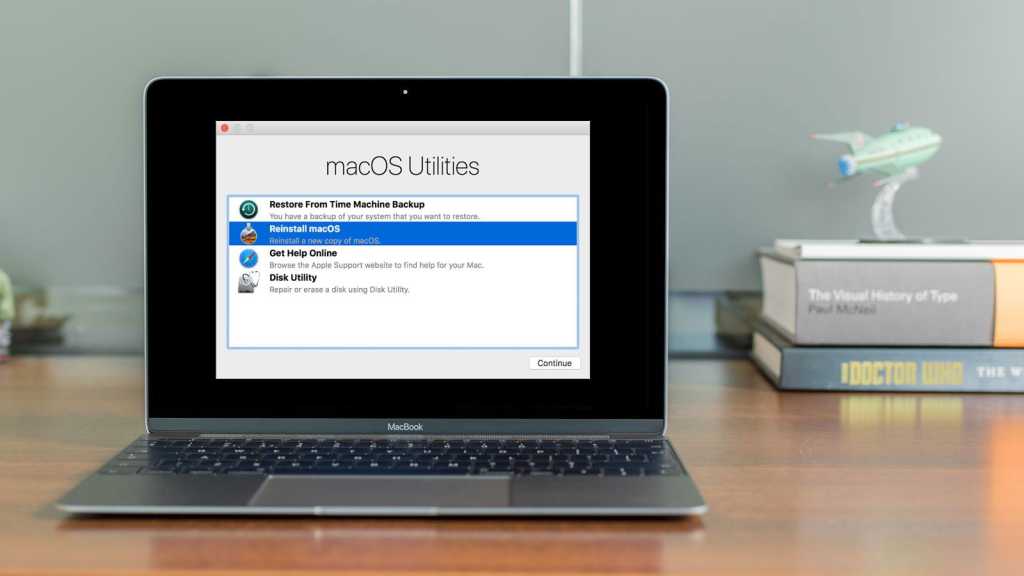
This is the game-changer for newer Macs with M1, M2, or M3 chips. Apple designed the process to be simple.
Read Also: OpenClaw macOS Intel Install Guide: Easy Setup for Intel Macs
-
Shut Down Your Mac: Click the Apple menu and select "Shut Down." Wait for the screen to go completely black and all lights to turn off.
-
Press and Hold the Power Button: Press and hold the power (Touch ID) button. Do not release it until you see "Loading startup options" appear on the screen.
-
Release and Select: Release the button. You will now be in the Startup Options menu. Click "Options" and then "Continue".
-
Log In: You will be prompted to select a volume and an administrator account. Enter the password for that account to continue.
What If My Screen is Broken?
If you have no display, you can still do this by timing it.
-
Shut down the Mac.
-
Press and hold the power button for about 10 to 15 seconds.
-
Release the button. Wait another 20-30 seconds. Your Mac should now be in Recovery Mode, even though you can't see the screen.
This is a much easier method. No keyboard shortcuts to remember. It is a much more user-friendly approach.
Using a Windows Keyboard (For Intel Macs)
If you have an older Intel Mac and a Windows keyboard, you can still boot into recovery. You just need to know the right keys.
You Must Also Like: How to Remove Installed Apps from Mac Easily And Safely?
The Keyboard Mapping
The key is knowing the equivalent keys on a Windows keyboard:
-
Command (⌘) on a Mac = Windows (Win) key on a PC keyboard.
-
Option (⌥) on a Mac = Alt key on a PC keyboard.
Standard Recovery Mode
This boots you into the local recovery partition on your hard drive.
-
Mac Command:
⌘ + R -
PC Equivalent:
Windows + R
Internet Recovery Modes
If the local recovery partition is damaged, you can use Internet Recovery.
-
Mac Command:
⌥ + ⌘ + R(Installs the latest compatible macOS). -
PC Equivalent:
Alt + Windows + R. -
Mac Command:
⇧ + ⌥ + ⌘ + R(Installs the version of macOS that came with your Mac). -
PC Equivalent:
Shift + Alt + Windows + R.
A Note on USB Wireless Keyboards
If you are using a wireless keyboard, note that it is generally less reliable for startup commands than a wired one. It might not connect quickly enough to register the keypress.
If you have a USB Bluetooth adapter, plugging that in can help, but a wired keyboard is the most dependable option.
The Terminal Method (No Key Presses at All)
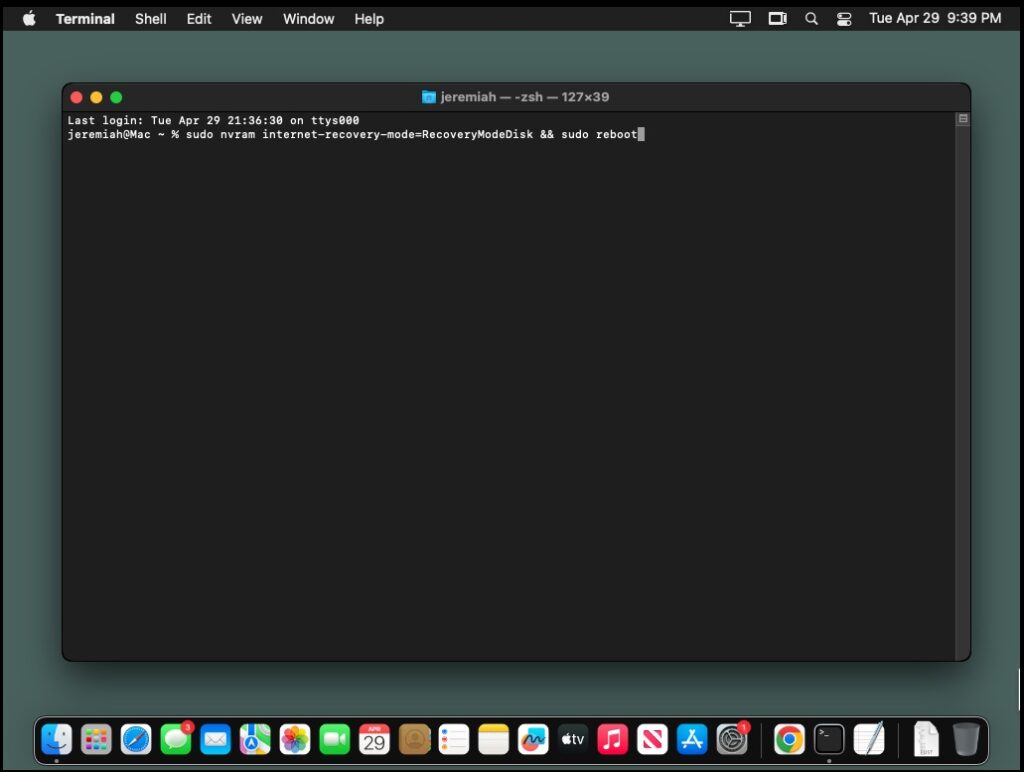
This is another great way to boot into recovery. It does not require a keyboard at all. You just type a command into the Terminal.
For Intel Macs
-
Open Terminal on your Mac.
-
Type the following command and press Enter:
sudo nvram recovery-boot-mode=unused
You will need to enter your admin password. -
Type
sudo rebootand press Enter .
Your Mac will restart directly into Recovery Mode.
When you are finished in Recovery Mode and want to boot normally, open the Terminal in Recovery and type:
nvram -d recovery-boot-mode .
For Apple Silicon Macs (Big Sur and newer)
The command for M1/M2/M3 Macs is different.
-
For Internet Recovery:
sudo nvram internet-recovery-mode=RecoveryModeNetwork. -
For Local Recovery:
sudo nvram internet-recovery-mode=RecoveryModeDisk.
To delete the variable and boot normally, use sudo nvram -d internet-recovery-mode .
The Final Thoughts
You do not need an Apple Magic Keyboard to rescue your Mac. For the most straightforward experience, use the Power Button method if you have an Apple Silicon Mac.
If you have an Intel Mac, remember the Windows keyboard mapping . And for a truly keyboard-free experience, the Terminal commands are incredibly handy. Choose the method that fits your situation and get back to work.