Your ASUS laptop won't turn on. The screen stays black. You press the power button again and again, but nothing happens. I have been there. It is frustrating, especially when you have work to finish or a deadline looming.
The good news? Most ASUS laptop startup problems have simple fixes. I have tested these solutions on my own VivoBook and a friend's ROG Strix. Some issues resolve in minutes. Others need a bit more patience. Let me walk you through what actually works.
Start With the Basics: Power and Connections
Before you panic, check the obvious stuff. A dead battery or loose charger causes more startup problems than anything else. Plug your laptop into a wall outlet using the original ASUS adapter.
Read Also: How to Clean Mac Display Safely: Easy Step-by-Step Guide
Wait a few minutes. Then press the power button. Sometimes the battery is so drained that it needs a few minutes of charge before the laptop responds.
Look at the charging indicator light. If it does not turn on, the problem is likely with the adapter or the charging port. Try a different outlet. Check the cable for damage.
If you have another ASUS charger with the same wattage, test that one. Do not mix adapters from different ASUS models. The power output varies, and the wrong adapter can make things worse.
If your laptop has a removable battery, take it out and put it back in. Skip this step if the battery is built-in. Most modern ASUS laptops have sealed batteries.
When the Screen Stays Black but the Power Light Is On
This is a common ASUS laptop startup problem. The laptop has power, but the display shows nothing. First, try a hard reset. Press and hold the power button for 15 seconds until all lights turn off.
Wait a few seconds. Then press the power button normally. This clears temporary glitches in the embedded controller.
If that does not work, try the display reset shortcut. Press Windows logo key + Ctrl + Shift + B at the same time. This resets the graphics driver. Sometimes the laptop is actually running, but the display is stuck.
Still black? Connect your laptop to an external monitor using an HDMI cable. If the external screen shows your desktop, the problem is your laptop's display, not the system. That points to a hardware issue with the screen or the cable connecting it.
The BIOS Reset That Fixes Most Boot Problems
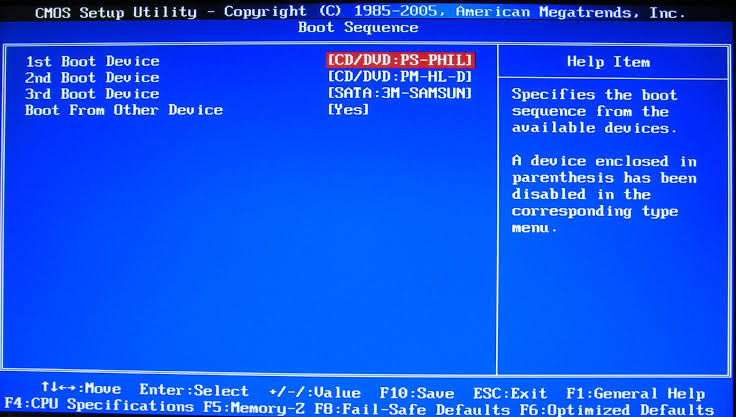
A corrupted BIOS setting is behind many ASUS laptop startup problems. The laptop tries to boot, but something in the firmware is confused. Resetting the BIOS to factory defaults often solves this.
You Must Also Like: How to Boot Mac Into Recovery Mode without Keyboard?
Here is how to do it. Turn off your laptop completely. Press and hold the F2 key. While holding F2, press the power button. Keep holding F2 until the BIOS screen appears. If F2 does not work, try holding the Del key instead.
Once you are in the BIOS, press F9. This loads the optimized defaults. A confirmation box appears. Select OK and press Enter. Then press F10 to save and exit. Select OK again. Your laptop will restart.
This simple reset fixes startup issues caused by incorrect boot order, disabled boot devices, or settings changed by a failed Windows update.
Fixing "The System Cannot Find Any Bootable Devices"
This error message scares people. It sounds like your hard drive died. But that is not always the case. Sometimes the BIOS just lost track of where to find Windows.
First, check if your drive is visible in BIOS. Enter the BIOS setup using the F2 method above. Look for "Storage Configuration" or "SATA Configuration" in the Main menu. If your SSD or hard drive appears there, the drive is alive. The problem is the boot settings.
Now fix the boot order. Go to the Boot menu in BIOS. Make sure your main drive is first in the boot priority list. If you see "Launch CSM" option, enable it. Also set SATA mode to AHCI instead of RAID or Intel RST . Save with F10 and restart.
If your drive does not appear in BIOS at all, the connection might be loose or the drive has failed. On some ASUS laptops, you can open the bottom cover and reseat the M.2 SSD. If you are not comfortable doing that, take it to a service center. A dead drive needs replacement.
Stuck on the ASUS Logo Screen
Your laptop powers on. The ASUS logo appears. Then nothing. It just sits there. This usually means a recent change confused the boot process.
Force a shutdown first. Hold the power button for 15 seconds . Disconnect everything plugged into the laptop. USB drives, external mice, SD cards, even the charger. External devices sometimes interfere with booting. Now press the power button again. If it boots normally, one of those devices was the culprit.
If the logo screen still freezes, you might be dealing with memory training. This happens after a BIOS update, a battery disconnect, or a RAM change. The laptop needs 1 to 3 minutes to configure the memory.
The screen stays dark during this time. Do not force shutdown. Wait it out. For laptops with Intel Lunar Lake chips, you might see "Working on Memory Training" on screen. That is normal.
After waiting, if the screen is still stuck, perform the BIOS reset I described earlier. The F9 then F10 method fixes most logo freezes.
Using a USB Recovery Drive as a Last Resort
If none of the above works, you can try booting from a USB drive. This helps you access your files and diagnose the problem.
You need another computer to create the recovery drive. Download the Windows Media Creation Tool from Microsoft's website. Use it to make a bootable USB stick. Then plug it into your broken ASUS laptop.
Enter BIOS with F2. Go to the Boot menu. Set the USB drive as the first boot device. Save and exit. If your laptop boots from the USB, your hardware is fine. The problem is with Windows or your internal drive. You can then try repairing Windows or backing up your data before reinstalling.
When to Stop and Call for Help
Some problems need professional repair. If you hear clicking noises from inside the laptop, the hard drive is likely failing. If the laptop gets extremely hot before shutting down, there is a cooling problem.
If you have tried every reset and still get no power lights at all, the motherboard or power circuitry might be dead.
ASUS service centers can diagnose these issues. If your laptop is under warranty, do not open it yourself. That voids the coverage. A professional repair costs money, but it is better than making things worse.
The Final Thoughts
Most ASUS laptop startup problems are not serious. A BIOS reset fixes the majority. Hard resets clear temporary glitches. Checking your charger and battery rules out simple power issues.
The key is to work through the steps in order. Do not jump to scary conclusions about dead motherboards. Try the easy fixes first. Nine times out of ten, your laptop will boot again in minutes.