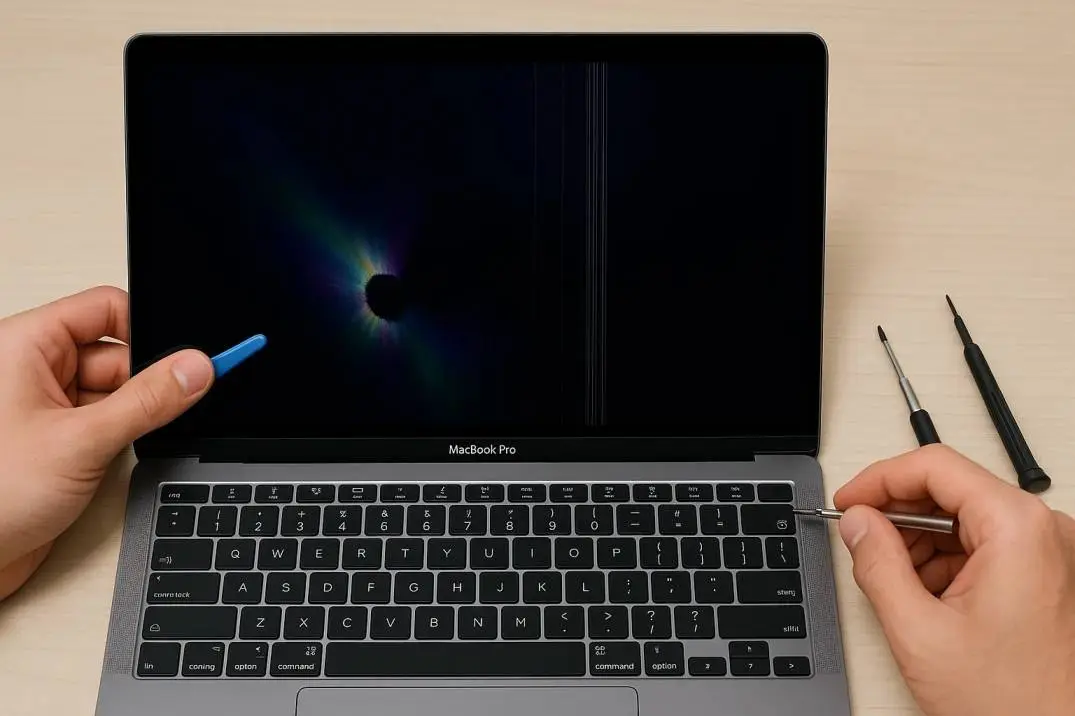
A blank screen on your MacBook Air is terrifying. The laptop looks like a brick. But that black screen does not always mean the display is dead. I have seen this problem dozens of times.
Sometimes the fix takes thirty seconds. Other times you need to look at hardware. This guide walks you through exactly what to do when MacBook air display problems strike.
How to Fix MacBook Air Display Problems? A Complete Guide
First: Check the Obvious
Do not panic. Do not assume the worst. Start with the simple stuff.
Read Also: How to Fix MacBook Air Flexgate: Symptoms, Repair Costs, and Apple’s Secret Program
Check the battery. Plug in your charger and wait a few minutes. Sometimes the battery is so drained that the screen stays black until it gets enough power . Press the Caps Lock key. If the light turns on, your Mac is running. The screen is just not displaying.
Brightness. This sounds stupid, but it happens. Someone accidentally turned the brightness all the way down. The screen is technically on, but you cannot see anything. Press the F2 key or use the brightness button on the Touch Bar .
Unplug everything. Disconnect all accessories except the power cable. External drives, printers, and mice can interfere with startup .
If none of these work, move on.
The External Display Test
This is the most useful test you can run. Connect your MacBook Air to an external monitor or TV. Use a USB-C to HDMI or DisplayPort cable.
Why this matters: If the external monitor works but your built-in screen stays black, you have a hardware problem with the display or its cable. MacBook display not working but external does is a common symptom.
That usually points to a damaged display cable, a failing panel, or a logic board issue . If the external monitor also stays black, the problem is likely software or the graphics chip .
Software Fixes That Actually Work
Why is my mac black screen after a software update or a crash? Often, it is a system glitch. Try these.
Restart Properly
Press and hold the power button for about 10 seconds. The MacBook will force a shutdown. Wait 15 seconds. Press the button again to restart .
Safe Mode
Boot into Safe Mode. This loads only essential system software and stops third-party apps from interfering .
-
Apple Silicon (M1, M2, M3, M4): Shut down. Press and hold the power button until you see "Loading startup options." Select your volume, hold the Shift key, and press "Continue in Safe Mode" .
-
Intel: Turn on the Mac and immediately hold the Shift key until the login window appears .
If the display works in Safe Mode, the problem is software. A clean install of macOS might be the answer .
Run Disk Utility
Open Disk Utility from the Recovery menu. Select your startup disk. Click First Aid. This checks for disk errors that can cause display issues .
Resetting System Controllers
For Intel MacBooks, resetting the NVRAM and SMC can resolve black screens caused by settings corruption.
You Must Also Like: How to Fix Black Lines at Bottom of MacBook Pro Screen?
Reset NVRAM: Shut down. Turn it on and immediately press and hold Option + Command + P + R for about 20 seconds .
Reset SMC: Shut down. Press and hold Shift + Control + Option and the power button for 10 seconds. Release all keys and turn it on .
Apple Silicon Macs handle these resets automatically on restart .
Hardware Problems?
If you have tried all the software fixes, you are likely looking at hardware.
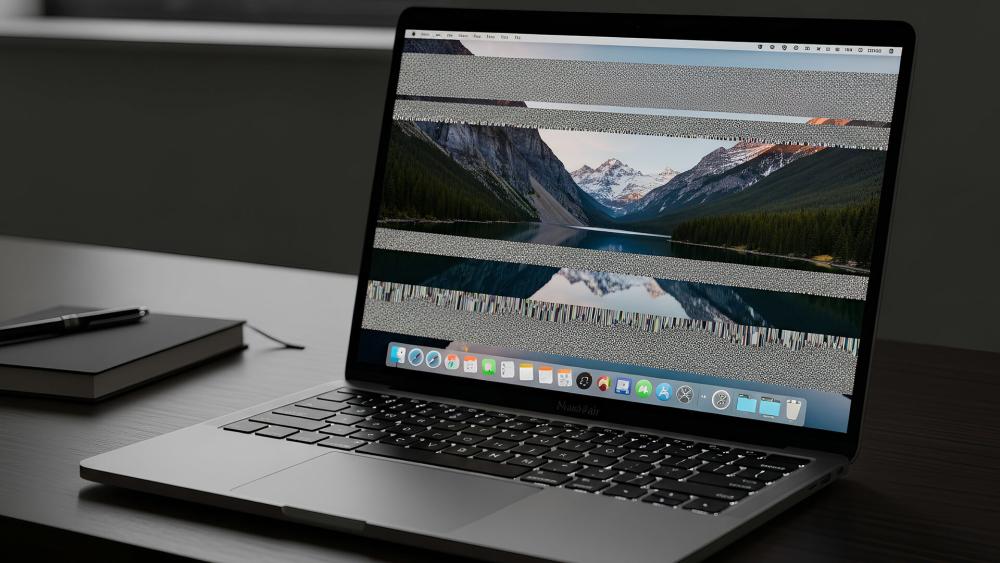
MacBook screen shaking or flickering often points to a display cable issue. The cable that connects the screen to the logic board flexes every time you open or close the lid. Over time, it wears out . This is a known issue on some models.
Physical Damage: A cracked screen or impact damage is obvious. If you see lines, dead pixels, or discoloration, the panel itself is damaged.
Calibration: Even if you replace the display yourself, Apple requires a system configuration for the new screen to work properly . The True Tone and other features may not function without Apple's calibration tool.
The Clamshell Mode Bypass
If the internal screen is completely dead, you can still use the MacBook as a desktop. Connect an external monitor, keyboard, and mouse. Close the lid.
The MacBook will use the external display as the primary screen . This is a temporary solution, but it lets you back up data and keep working while you decide on repairs.
When to Call a Professional?
If none of these steps work, visit an Apple Store or an authorized service provider. Apple Diagnostics can identify specific hardware faults. Attempting complex repairs without the right tools and calibration software can cause more damage.
The MacBook air display problems are frustrating, but many cases are fixable. Start simple. Test the external monitor. Try Safe Mode. Only then consider hardware. This guide gives you the path to follow, and now you know exactly where to start.