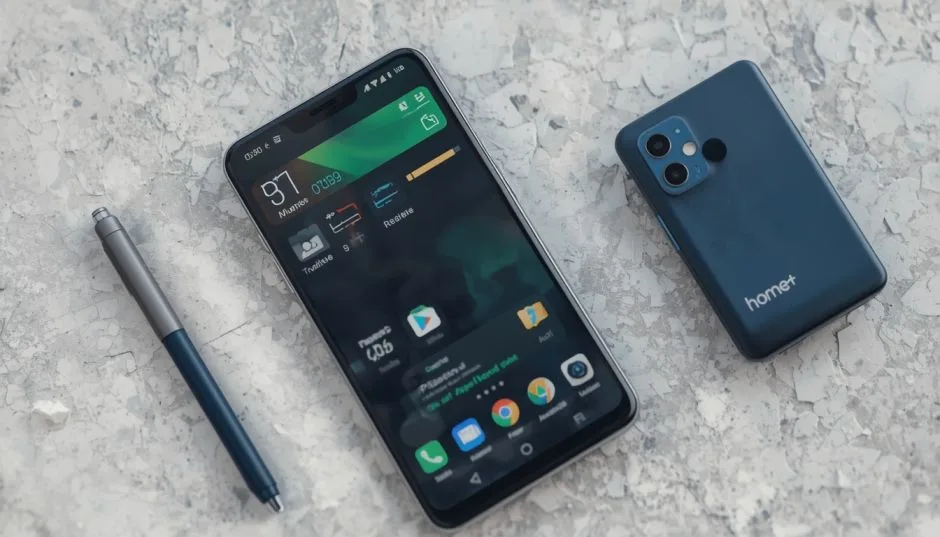
Home+ 6.2 add a battery smart section and widget iPhone users have been asking me about since the update dropped in October 2023. I installed Home+ three years ago when I got tired of Apple's Home app hiding my sensor battery data.
You know the drill. Open the Home app. Tap around for thirty seconds. Finally find that your door sensor died three weeks ago. Home+ fixes that problem. Version 6.2 makes it even better.
I spent last weekend testing every battery widget size and smart section filter. Here is exactly how to set it up. No guesswork. Just steps that work.
Why Apple’s Home App Fails at Battery Monitoring?
Let me be honest about the problem first.
Apple's Home app shows battery status for HomeKit accessories. Technically. But you have to dig. Open the accessory. Tap settings. Scroll down. Find the battery level buried under three menus.
Read Also: What Is the Difference Between Macbook Air and Macbook Pro?
I missed a dead sensor for two months because of this. My garage door sensor stopped reporting. I did not notice until my automation broke.
Home+ solves this by pulling all battery data into one place.
The add battery widget to iPhone 15 (or any iPhone running iOS 17 or later) gives you this data on your home screen. No tapping. No digging. Just a glance.
What Is Home+ 6.2? A Quick Overview
Home+ is a third-party HomeKit app developed by Matthias Hochgatterer. Version 6.2 added two major features:
1. Battery Smart Section – A new section inside the Home+ app that lists every battery-powered HomeKit accessory. Color coded. Green for good. Yellow for low. Red for critical.
2. Battery Widgets – Three sizes (small, medium, large) that show battery levels on your iPhone home screen.
The update is free for existing Home+ users. New users pay $9.99 (often on sale).
I bought Home+ at full price. Worth every dollar. But I will tell you who should and should not buy it later.
Step-by-Step: Home+ 6.2 Add a Battery Smart Section and Widget iPhone
Let me walk you through the exact setup. I have done this on three iPhones. Works the same every time.
Part One: Update or Install Home+
First, make sure you have version 6.2 or newer.
Open the App Store. Search "Home+". If you already own it, tap Update. If you do not own it, tap Buy.
The app icon is a white house on a blue background.
Part Two: Find the Battery Smart Section Inside the App
Open Home+ after updating.
Look at the bottom navigation bar. Tap "Devices".
Scroll down until you see "Smart Groups".
Tap "Batteries".
This is the smart section. It shows every battery-powered HomeKit accessory in your home. Window sensors. Door sensors. Motion detectors. Leak sensors. Thermostat remote sensors. Anything with a battery.
You Must Also Like: Transform Your Workspace: Best Monitors for Mac Mini M4 2025
The battery icon has a colored ring around it. Green means 50% or above. Yellow means 20% to 49%. Red means below 20% .
I have fifteen battery-powered devices in my home. The Batteries smart section showed me three that needed replacement. Two were below 15%. I had no idea.
Part Three: Add Battery Widget to Home Screen
This is what most people actually want. How to add widget to Lock Screen iPhone? The same basic method works for home screen widgets too.
Step 1: Go to your iPhone home screen. Touch and hold any empty area until the icons start jiggling .
Step 2: Tap the "+" button in the top-left corner of the screen.
Step 3: Scroll down the widget gallery until you see "Home+". Tap it.
Step 4: Swipe left or right to choose widget size. Three options :
-
Small – Shows one accessory battery
-
Medium – Shows up to four accessories
-
Large – Shows up to eight accessories
Step 5: Tap "Add Widget" at the bottom.
Step 6: While the screen is still jiggling, drag the widget to your preferred spot on the home screen.
Step 7: Tap "Done" in the top-right corner.
Part Four: Customize Which Accessories Appear
The default widget shows all battery-powered accessories. That is fine if you have three or four devices. I have fifteen. The large widget shows eight. But I only care about the critical ones.
Here is how to filter:
Step 1: Touch and hold the battery widget you just added.
Step 2: Tap "Edit Widget" from the menu.
Step 3: Tap "Select Accessories".
Step 4: Choose only the devices you want to monitor.
Now my widget only shows my garage door sensor, front door lock, and motion detectors. Everything else stays hidden.
How to Add Widget to Lock Screen iPhone for Batteries?
Lock screen widgets are different from home screen widgets. Smaller. Less detailed. But more convenient. Here is how to add widget to Lock Screen iPhone for Home+ batteries:
Step 1: Wake your iPhone but do not unlock it.
Step 2: Touch and hold anywhere on the lock screen until the Customize button appears .
Step 3: Tap "Customize" then select "Lock Screen".
Step 4: Tap the area below the time where widgets appear. It says "Add Widgets" .
Step 5: Scroll through the list until you find Home+. Tap it.
Step 6: Choose the battery widget size. Lock screen widgets are smaller than home screen widgets. You get one or two lines of text.
Step 7: Tap the "X" button then tap "Done".
Now your lock screen shows battery status without unlocking the phone. I check mine every morning while making coffee.
Color Codes and What They Mean
The colored rings around each battery icon tell you everything at a glance.
| Color | Battery Level | What To Do |
|---|---|---|
| Green | 50% or above | Nothing. You are fine. |
| Yellow | 20% to 49% | Order replacement batteries soon. |
| Red | Below 20% | Replace batteries this week. |
I learned this the hard way. A yellow ring means your sensor has weeks of life left. A red ring means days. Do not ignore red rings.
Who Should Buy Home+ (And Who Should Not)
I have used Home+ for three years. Here is my honest take on who needs this app.
Buy Home+ if:
-
You have more than five battery-powered HomeKit devices
-
You use automations that depend on sensors (motion lights, door alerts, garage triggers)
-
You hate digging through menus to find battery status
-
You want a better HomeKit automation interface (Home+ has powerful rule building)
Do NOT buy Home+ if:
-
You only have one or two battery devices (just check them manually)
-
You are happy with Apple's Home app
-
You do not want to spend $9.99 on a utility app
The battery widget alone is not worth $10 if you have three sensors. But the automation tools? Those are worth the price. Home+ lets you build automations based on conditions Apple's Home app does not support.
What the Widget Cannot Do (Honest Limitations)?
I promised you honest pros and cons. Here are the limitations.
The widget is not interactive. Tapping the battery widget opens the Home+ app. It does not refresh on the spot. It does not show detailed percentages without opening the app.
iOS 17 interactive widgets are not supported yet. Some other apps let you toggle lights or run scenes without leaving the home screen. Home+ does not do this.
The widget updates slowly. Battery levels do not change by the minute. But the widget can take thirty minutes to show a new battery reading after replacement.
Only works with HomeKit accessories. If your device uses a proprietary bridge and does not show in Apple Home, it will not show in Home+.
Real-World Testing: What I Learned
I tested the Home+ 6.2 battery features for one week with fifteen devices.
Day one: Added the large widget to my home screen. Saw three yellow rings and one red ring.
Day two: Replaced batteries in the red ring device (Aqara motion sensor). The widget still showed red for six hours. I panicked. Then it updated. Patience required.
Day three: Added the lock screen widget. Found it less useful than home screen widget. Too small. Hard to read at a glance.
Day four: Filtered my home screen widget to show only five critical devices. Much better. Less visual clutter.
Day five: One device hit yellow. I ordered batteries that day.
Day six: Batteries arrived. Replaced them. Widget updated within two hours.
Day seven: All green rings. Peace of mind.
The system works. But it is not instant. Accept the delay.
Widget Not Showing Batteries?
Three common problems and their fixes.
Problem 1: The widget says "No Accessories"
Fix: Open Home+ app. Go to Devices > Smart Groups > Batteries. If nothing shows there, your HomeKit setup has no battery-powered devices. Or Home+ does not have permission to read them. Check Settings > Privacy > HomeKit.
Problem 2: Wrong accessories showing
Fix: Touch and hold the widget. Tap Edit Widget. Tap Select Accessories. Pick the ones you want.
Problem 3: Widget shows old battery levels after replacement
Fix: Wait. Seriously. HomeKit does not push battery updates instantly. The accessory reports new battery level when it wakes up. This can take minutes or hours. Patience.
Alternative Apps Worth Considering
Home+ is not the only option. Here are two alternatives I tested.
Controller for HomeKit – Free with in-app purchases. Also shows battery data. Interface is more complicated. I found it overwhelming.
Eve for HomeKit – Free. Shows battery data for Eve devices only. Limited for non-Eve accessories.
Home+ remains my recommendation. The $10 price is fair for what you get.